Troca de roupa com IA

Troca de roupa com IA: uma peça, infinitas possibilidades

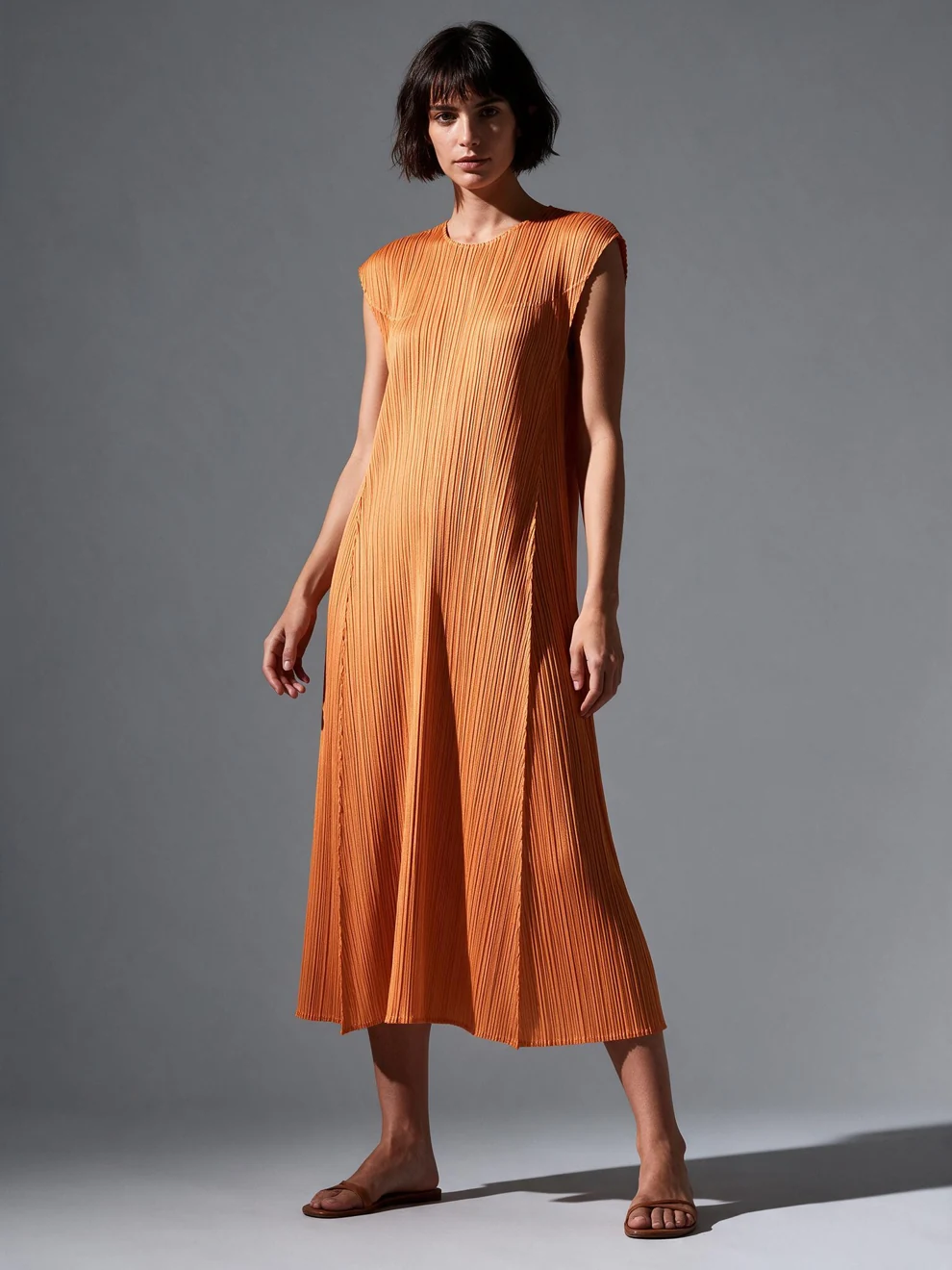
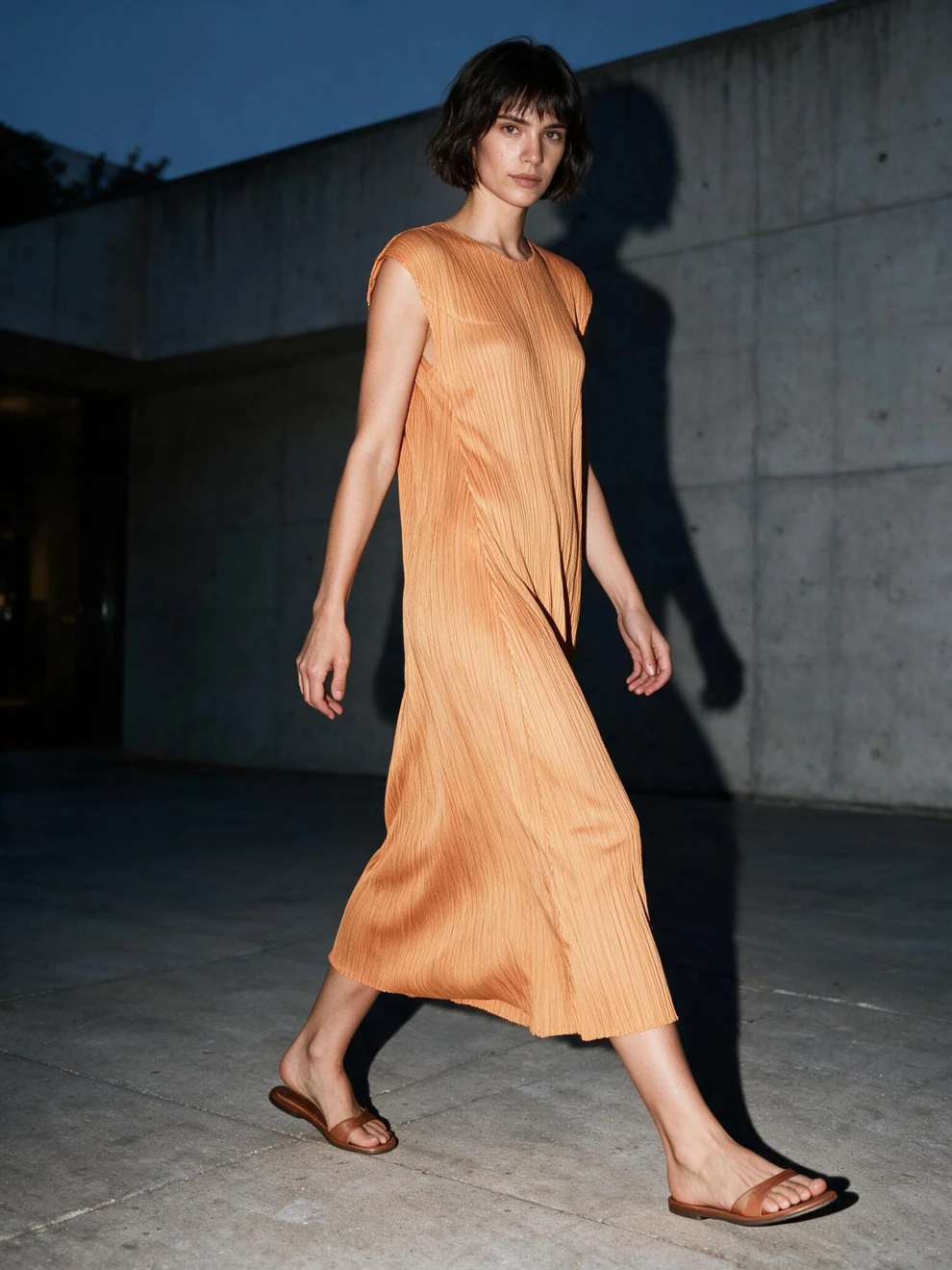
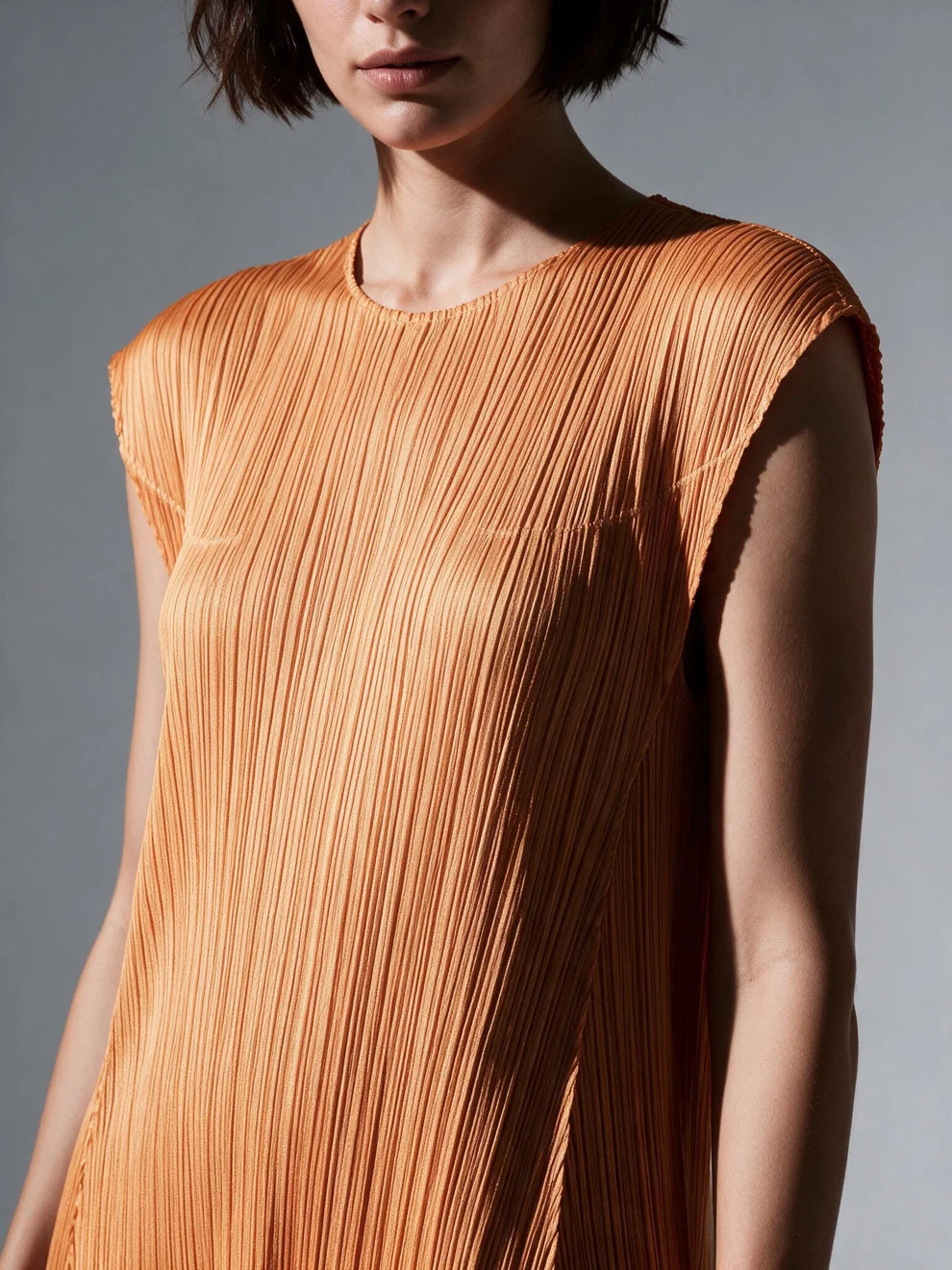
A troca de roupa com IA ajuda fotógrafos de moda e marcas a tirar mais das roupas e das fotos que já têm. Crie imagens de moda para anúncios, editoriais e loja virtual sem marcar um ensaio novo para cada look. Menos refação e um custo de produção menor por imagem.

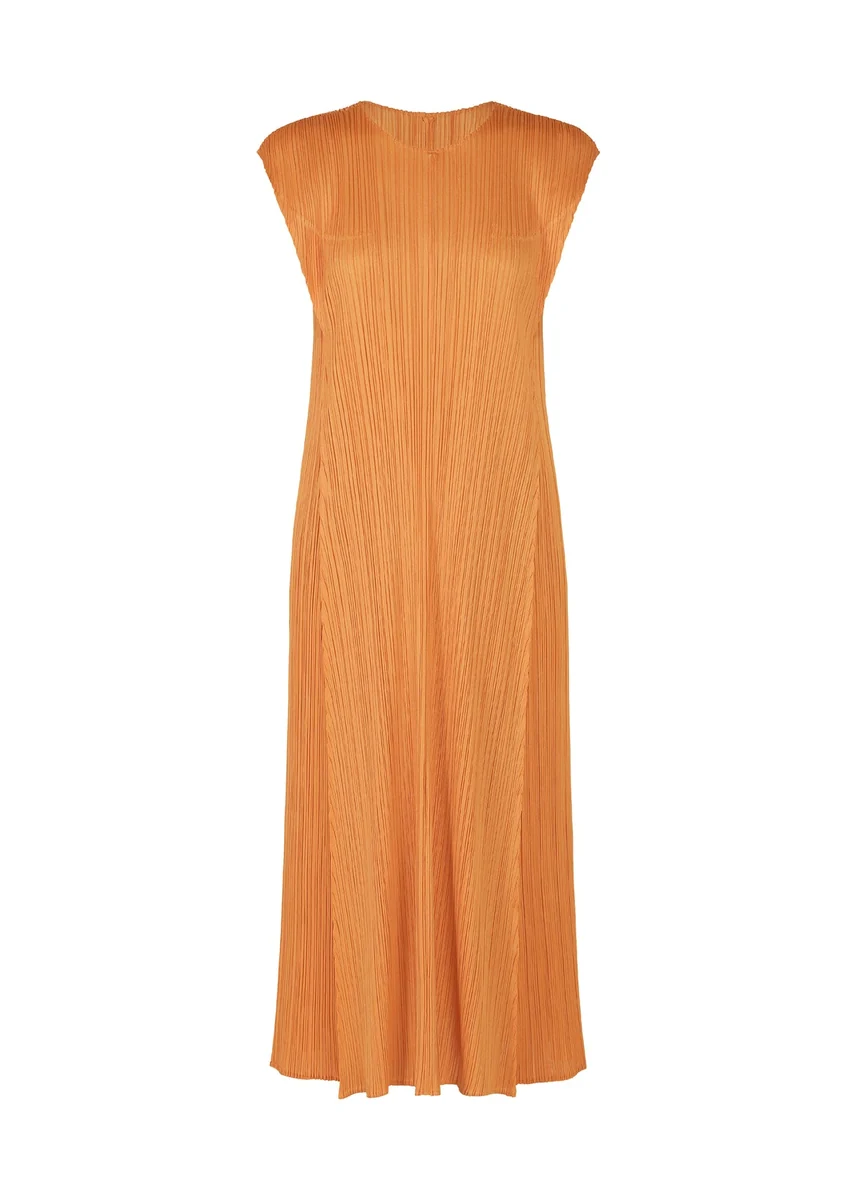
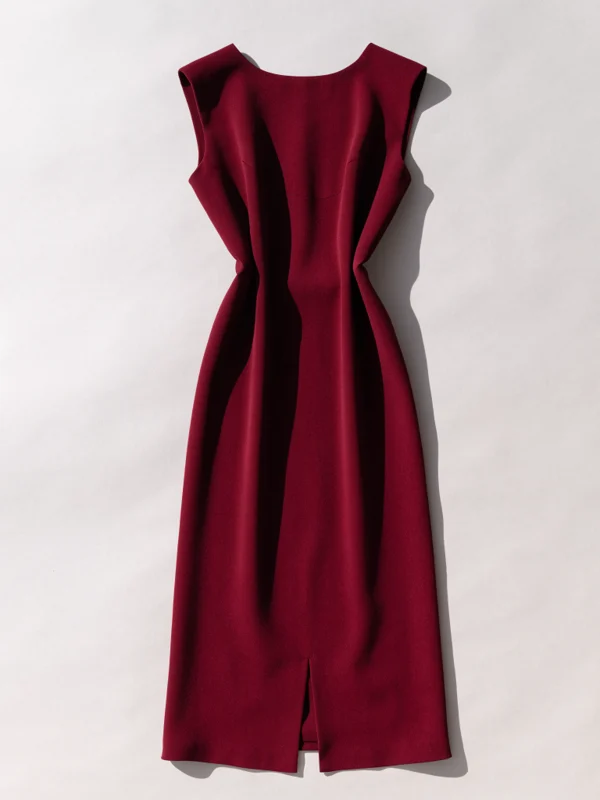
Um vestido midi vinho sem mangas, esticado
Referência do vestido
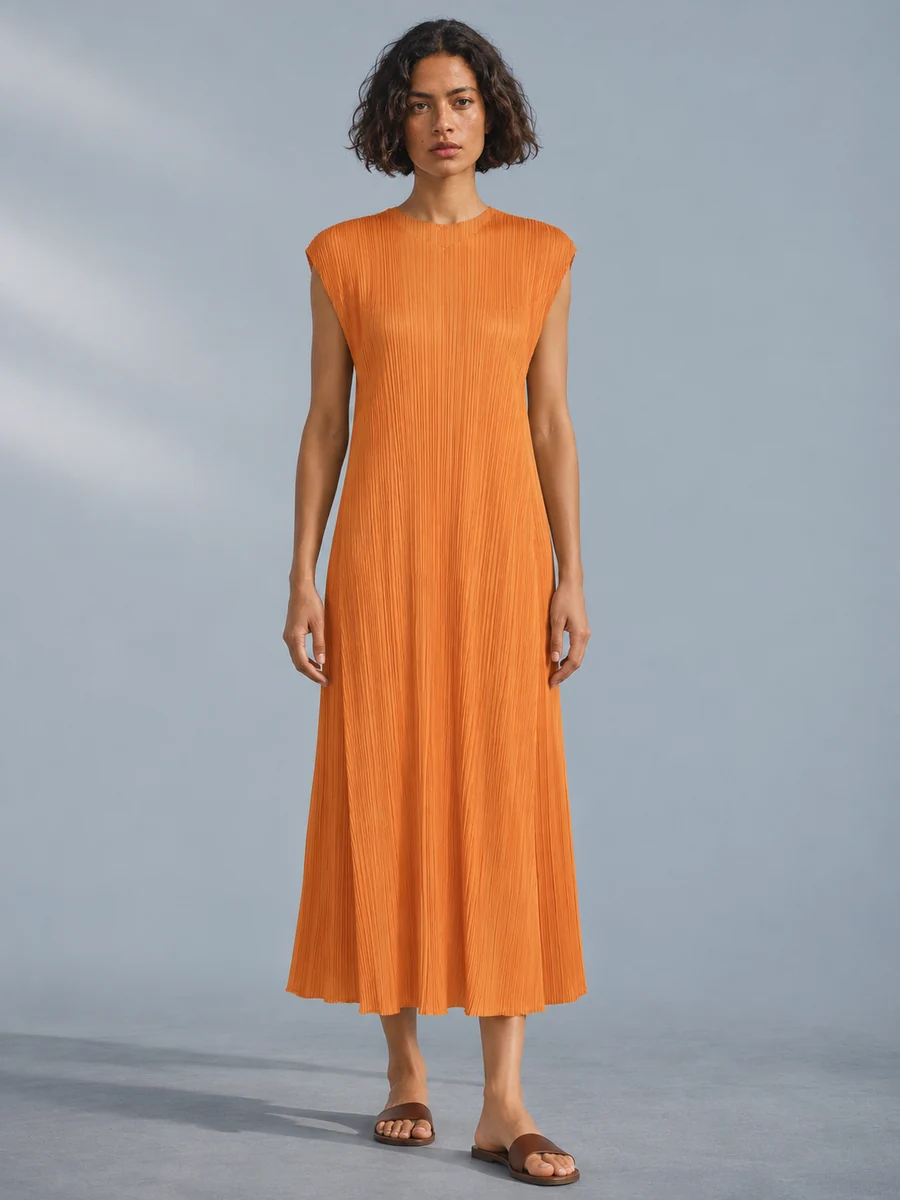
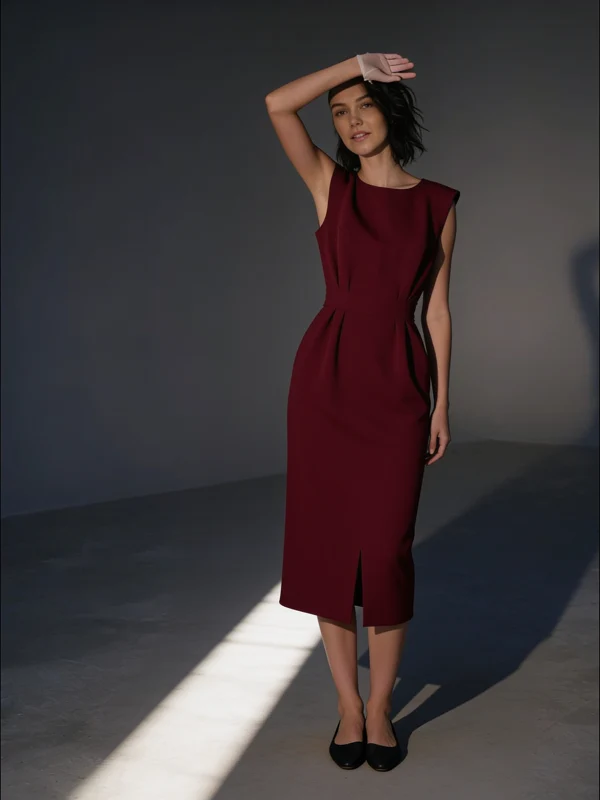
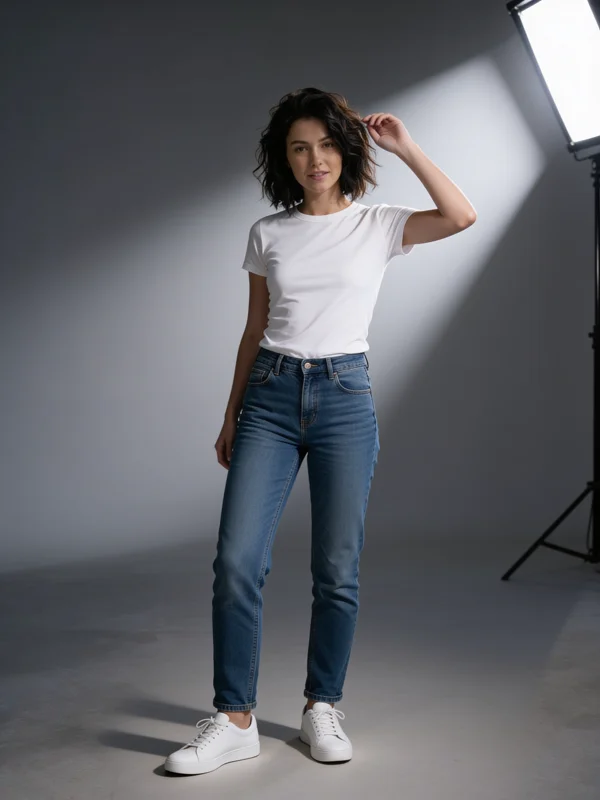
Pessoa de vestido vinho posando sob um spot de estúdio
Retrato de estúdio
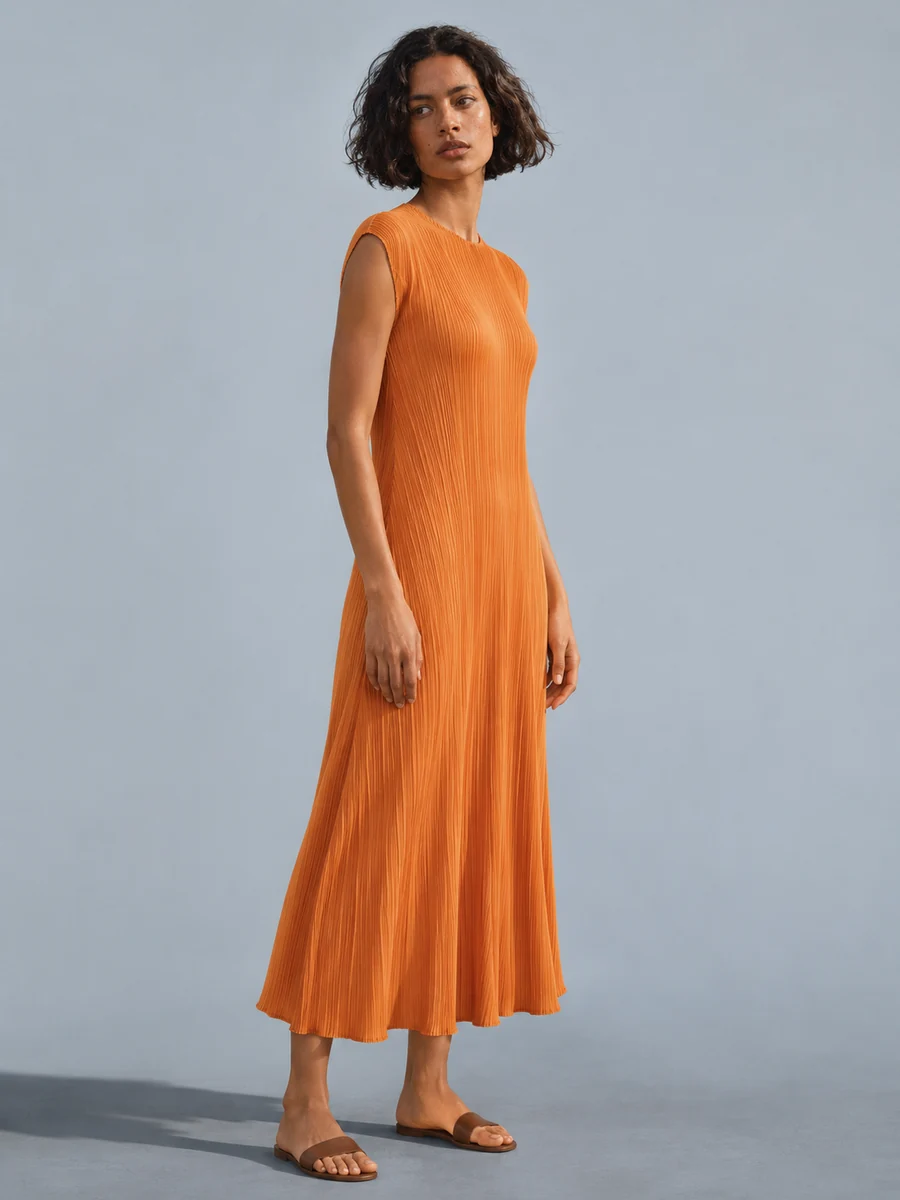
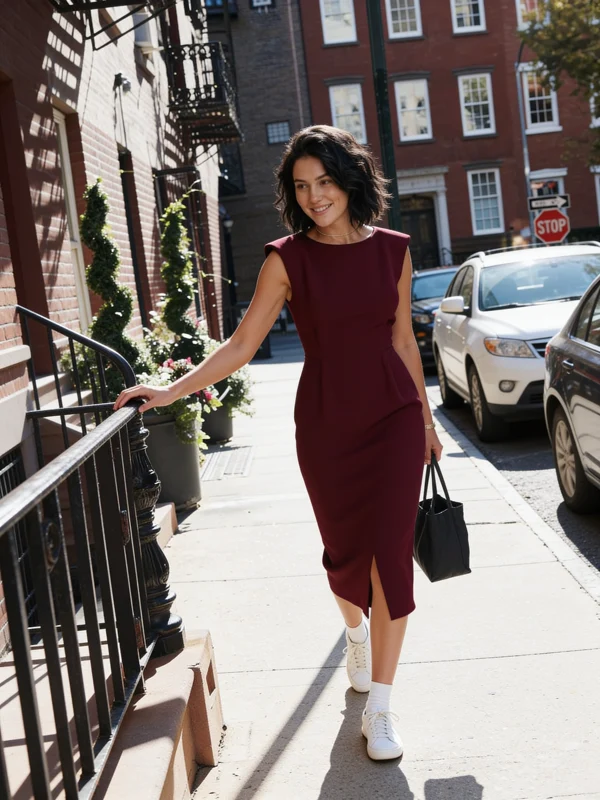
Pessoa combinando o vestido vinho com tênis branco numa calçada ensolarada
Look casual de rua
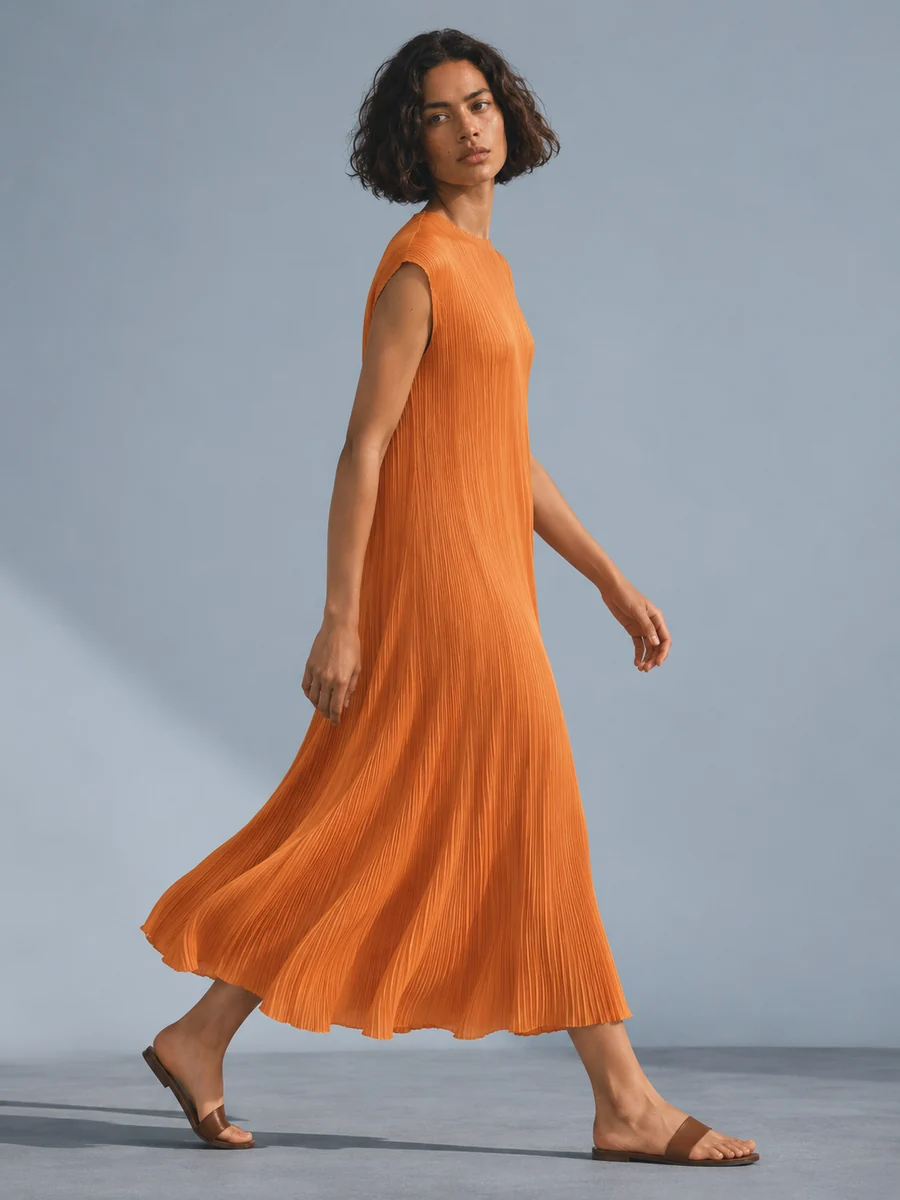
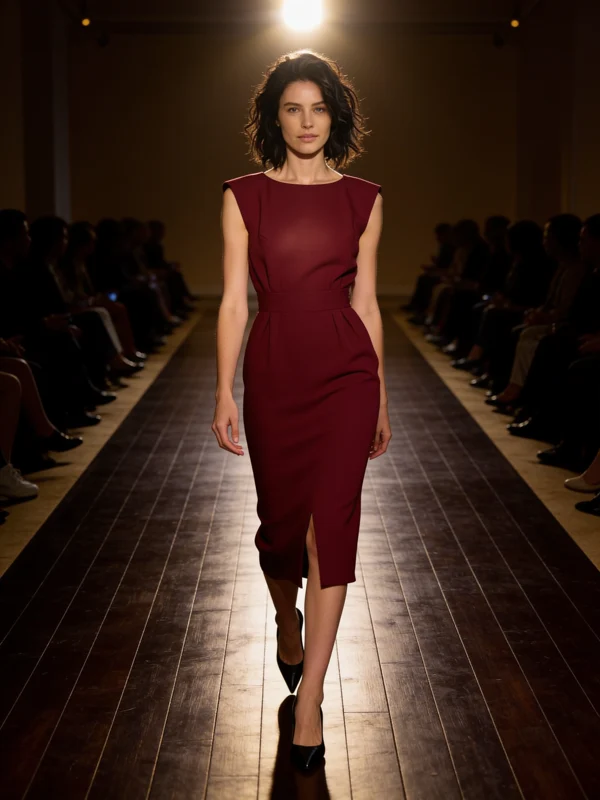
Pessoa de vestido vinho desfilando numa passarela com a plateia sentada dos dois lados
Passarela

O que é troca de roupa com IA?

A troca de roupa com IA, também chamada de provador virtual, usa a foto de uma pessoa e as referências das peças para criar uma imagem da pessoa vestindo aquelas roupas. Uma loja pode usar um flat lay para mostrar como um vestido fica no corpo, ou testar alguns looks na mesma pessoa antes de planejar um ensaio.

O Clothes Swap usa a foto da pessoa para a pose e o enquadramento, e as fotos das peças para detalhes como cor, material e modelagem. Um prompt curto pode direcionar o cenário ou a luz.

Para um volume maior de imagens, use o Fashion Studio. Ali você coloca várias peças no mesmo personagem salvo, testa uma peça em pessoas diferentes ou cria um vídeo curto a partir de uma foto pronta.

Try Fashion Shoot yourself

This is a sample swap. Play around with the four photos and four outfits to see how the same clothes look in different settings. The demo shows saved results.

Choose a photo
Choose an outfit
Garment references
Original photo
The same person in the studio reference photo
Swap result
Run the swap to see the result

Bring your own garments

Use your photos to make fashion images and videos in Fashion Studio.

Open Fashion Studio

Three ways to use Fashion Studio

1. Start with a flat lay

If all you have is a photo of the garment laid out flat, you can still make a product photo that shows how it hangs on a person. The orange linen dress here starts with a phone photo taken on a bed. Its tie waist and hem are visible, which gives Fashion Studio a clear reference.

  1. Click Upload clothing and add the flat lay. A straight-on photo in even light works well. Smooth the fabric enough to show the neckline, sleeves and hem, and leave a little room around the edges.
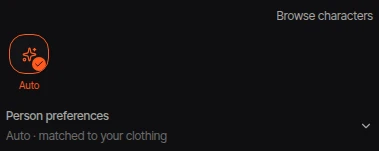
  2. Leave the person on Auto to let Fashion Studio choose who wears the garment and how they pose. To keep the same person across a collection, select a saved character or use Browse characters.
  3. Select Image, choose a 3:4 frame for a vertical product listing, and click Generate image. Compare the result with the flat lay at full size. The tie, seam placement and hem should match what you’re selling.

Example For a summer collection, use the same framing and soft daylight for each dress. The product pages will feel like one shoot, even if the flat lays came from different days.
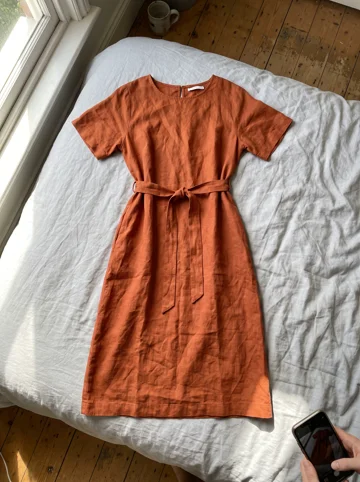
Orange linen dress laid flat on a bed
The orange linen dress, photographed flat.
Fashion Studio showing Auto selected and the person preferences
Leave the person on Auto when you don’t need a consistent face across the shoot.

2. Start with a photo of someone wearing it

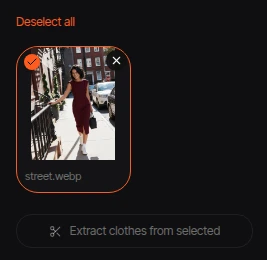
A photo from a previous shoot can be your clothing reference. It already shows how the garment sits on a shoulder or falls along a leg. This works well when the piece is easy to see and other clothing or accessories aren’t covering it.

  1. For a straight swap, upload the existing photo under Your clothing, select it, and choose another person from your saved characters Then click Generate image. Fashion Studio uses the uploaded photo for the outfit and your selection for who wears it.
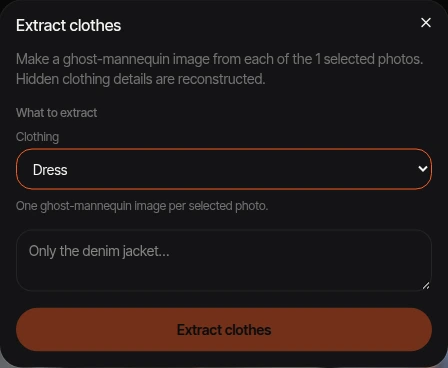
  2. To isolate one piece, select the uploaded photo and choose Extract clothes from selected. In the dialog, choose Dress, Top, Bottom or another garment type. Add a note if the photo shows several pieces and only one should be extracted.
  3. Use the extracted image as a clothing reference for later shoots. Check the neckline, closures and edges against the original photo before using it. Hidden parts of the garment are reconstructed during extraction.

Example Say you have a campaign photo of a dress worn under a jacket. If the dress is the piece you want to reuse, choose Dress and note that the jacket should be left out. Use the isolated dress to make a new product image on another person.

Selected clothing photo and the Extract clothes from selected button in Fashion Studio
Select the photo in Your clothing, then open Extract clothes.
Fashion Studio extraction dialog with Dress selected
Choose the piece to keep. Add a note if several pieces overlap.

3. Upload a batch

If you’re preparing a collection, upload several garments together and reuse the same shoot settings. For example, you could upload four dresses, give them the same framing and lighting, and make two photos of each without setting up four separate runs.

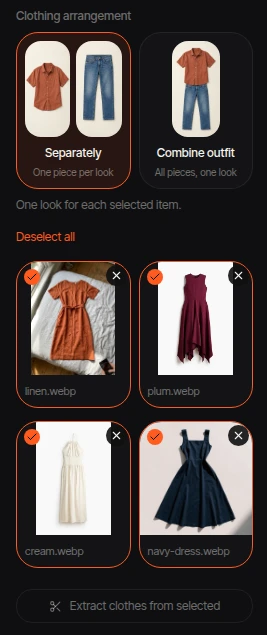
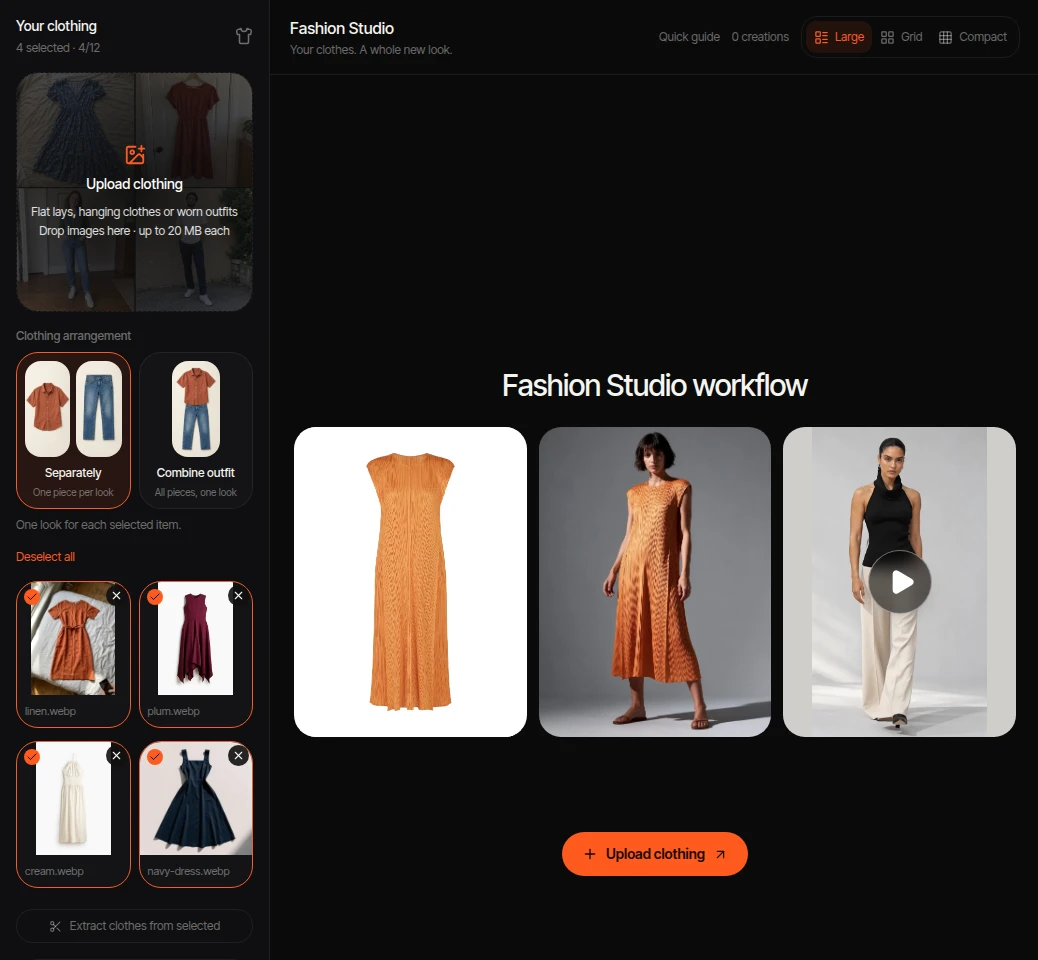
  1. Upload the four garment photos and check that all four are selected. Under Clothing arrangement, choose Separately. This makes a separate look for each garment. Use Combine outfit when the pieces belong in the same look.
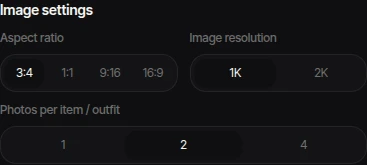
  2. Set the person, framing and any styling directions once. For product listings, a saved character and consistent 3:4 crop help the collection look cohesive. Set Photos per item / outfit to 2 and check that the total shows eight images before you run.
  3. Select Image and click Generate image to make the photo batch. For motion, switch to Video, choose a motion template such as Casual walk or Detail close-up, then click Generate video. Review each result against the original garment before publishing.

Example Use one full-length view on each product page and keep a second image for a collection page or ad. If you need vertical clips for social, run a video batch with the same garments and framing suited to that channel.

Fashion Studio set to Separately with four dress photos selected
Select the four dresses and keep them set to Separately.
Fashion Studio with two photos per item selected in the generation settings
Two photos per item gives you eight images across four dresses.
FOR ONLINE STORES AND BRANDS

Selling clothes? Put every product on a model.

Clothes Swap changes one outfit in one photo. If you sell clothes, the same engine runs in Fashion Studio for a whole range: every product on a model, every colourway, a range of ages and looks, and video for ads, without booking a shoot.

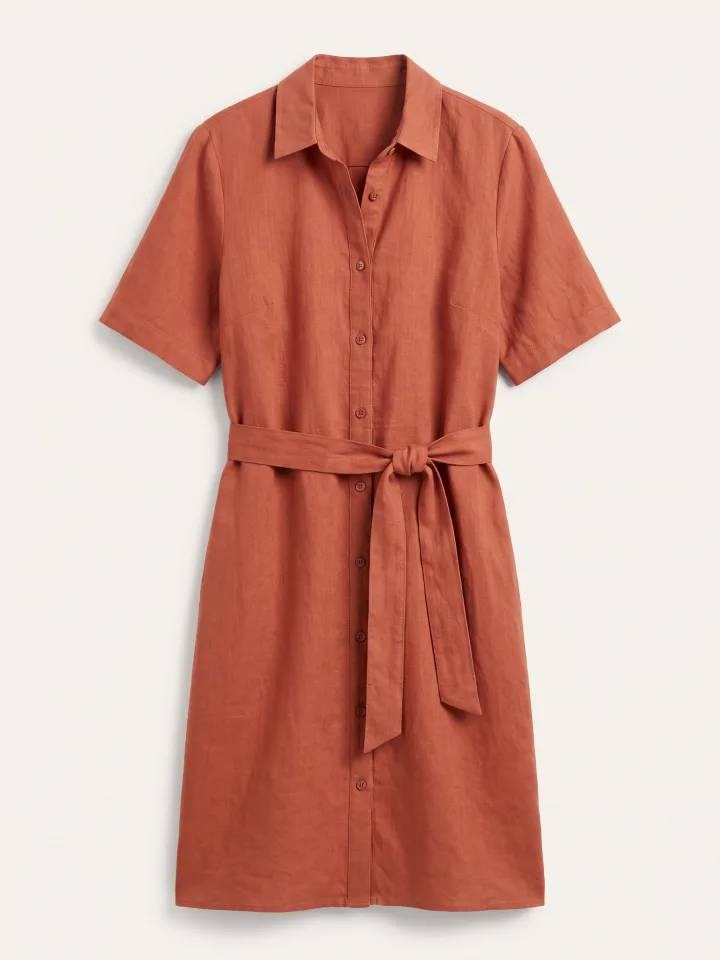
Flat-lay product photo of a terracotta linen shirt dress with a tie belt
Product photo
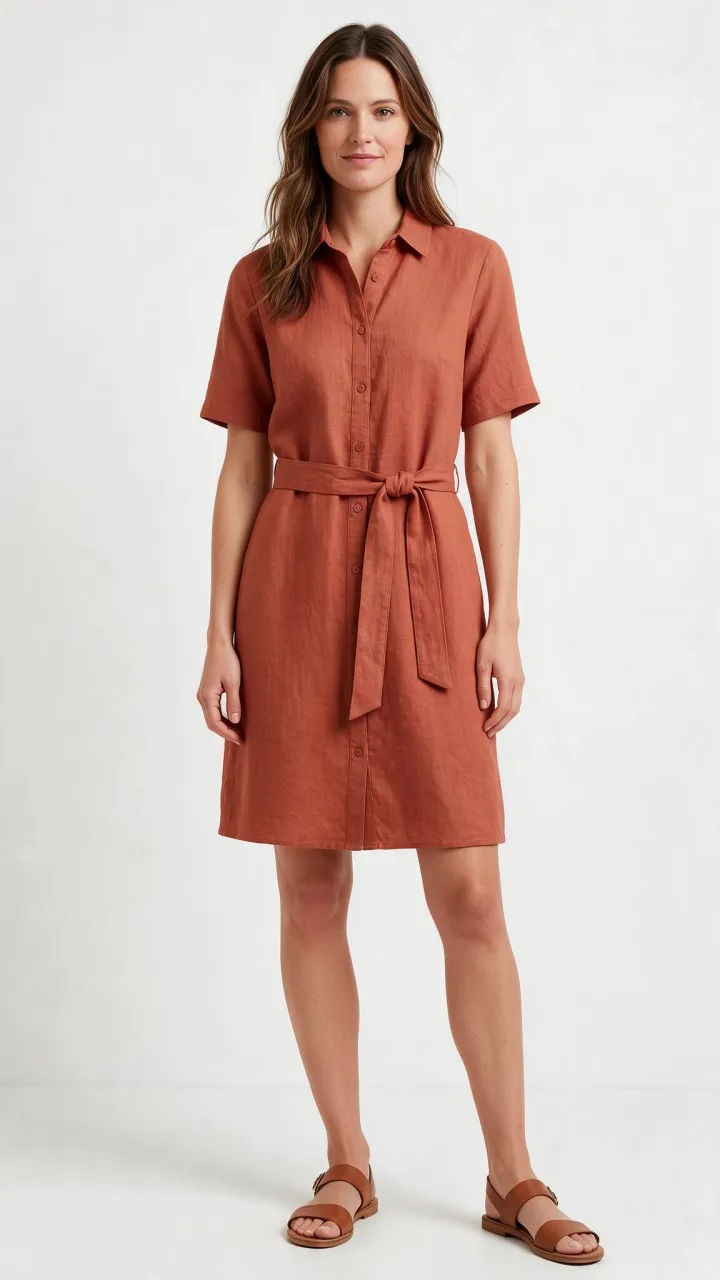
An AI model in her 30s wearing the terracotta shirt dress on a white studio background
Catalogue
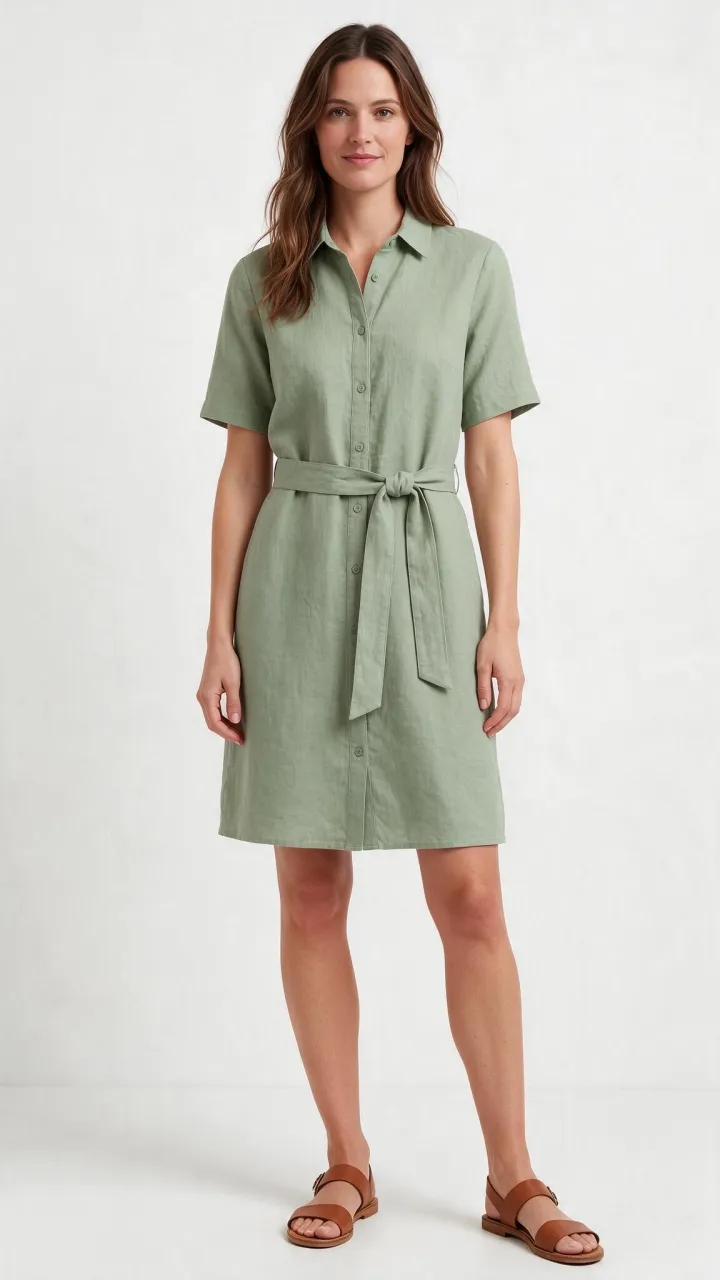
The same model and pose with the dress in sage green
Sage colourway
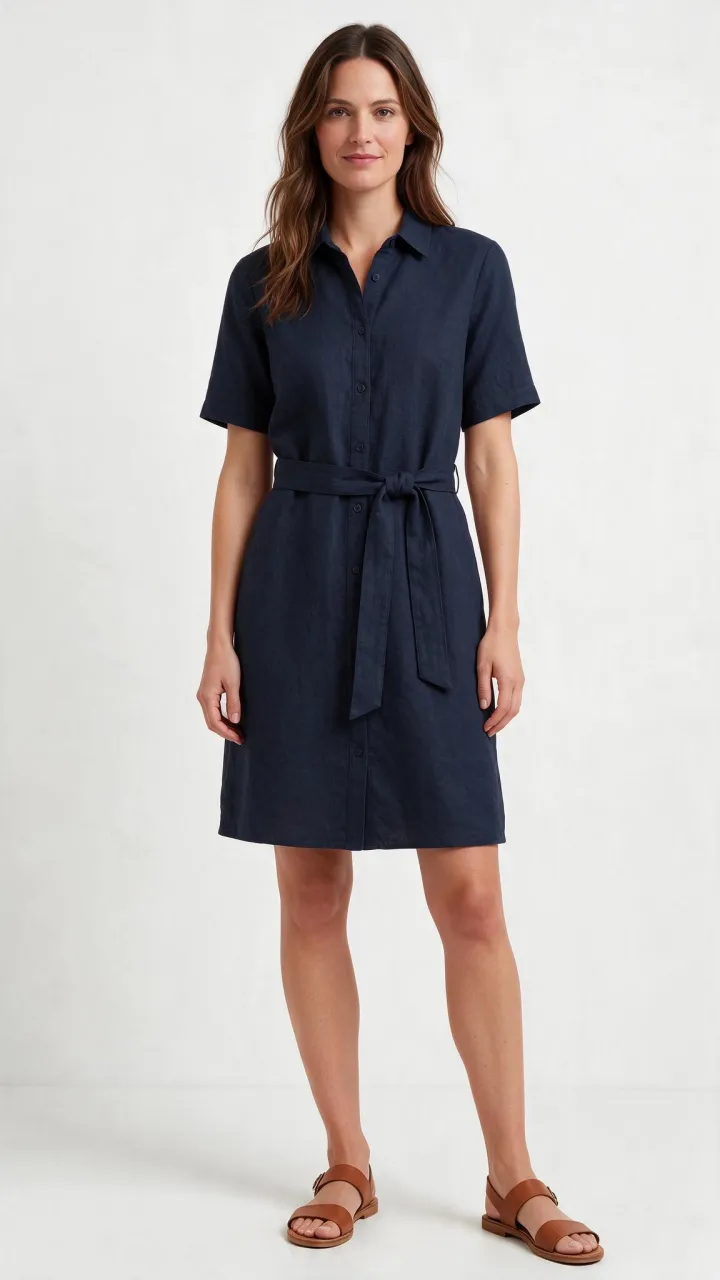
The same model and pose with the dress in navy
Navy colourway
50s · video

Product photos and models are AI-generated. Made with Fashion Studio's try-on, unretouched.

Products on models

Start from the flat-lay, ghost-mannequin or supplier photo you already have. Fashion Studio puts it on a model and keeps the cut, colour and print.

AI fashion models

Colour and fit variants

Shoot one colourway, then show the others on the same model and pose. Show a piece on different builds so shoppers can see how it sits.

Model diversity

The same garment on people in their 20s to 60s+, of different ethnicities, or one house model saved as a Character for the whole catalogue.

Catalogue and listing images

Uniform 3:4 or 9:16 framing for every SKU, and clean studio backgrounds for marketplaces that ask for them.

The catalogue workflow

Ghost-mannequin product shots

Extract the whole outfit, or just the top, bottom, dress, outerwear or shoes, as a clean product image for the listing.

From try-on to video

Turn the best shot into a 5 or 10 second turn, walk or detail clip for product pages, Reels and TikTok ads.

Clothes swap for video

Dressing a whole catalogue?

Paid plans include a commercial licence, no watermark and credits that roll over, so a drop can be shot across several weeks. Plans start at $24 a month; larger plans suit stores with many SKUs.

Dois fluxos de troca de roupa no Fashion Studio

Coloque várias peças na mesma pessoa

  1. Envie as fotos das peças juntas e escolha Separately em Clothing arrangement.
  2. Escolha um personagem salvo ou use Browse characters para encontrar um.
  3. Clique em Generate image. O Fashion Studio cria um look separado para cada peça selecionada.
Fashion Studio com quatro vestidos selecionados e Separately ativado
Escolha Separately para cada peça selecionada virar um look próprio.

Teste a mesma peça em pessoas diferentes

  1. Envie ou selecione uma peça e escolha o primeiro personagem salvo.
  2. Clique em Generate image, depois troque de personagem e rode de novo com a mesma peça, a mesma proporção e as mesmas instruções de styling.
  3. Compare os resultados na grade do Fashion Studio e escolha a pessoa para o resto do ensaio.
Fashion Studio mostrando Auto e o botão Browse characters
Mantenha o vestido selecionado enquanto troca para outro personagem salvo.

Abrir o Fashion Studio →

Para que as pessoas usam

Dicas

  • Mostre a peça inteira sobre um fundo liso.
  • Combine o enquadramento: pessoa de corpo inteiro para vestidos e calças.
  • Deixe os braços da pessoa longe de onde a peça vai ficar.
  • Peça algumas variações e escolha o melhor caimento.

Perguntas frequentes

Quantas peças posso adicionar?

Até quatro por rodada, o suficiente para um look completo com acessório.

Ele mantém o rosto e a pose da pessoa?

O Clothes Swap usa a foto original como referência de rosto, pose e enquadramento. Detalhes pequenos podem mudar. Compare o resultado com a foto original antes de usar.

Quais fotos funcionam melhor?

Uma foto bem iluminada da pessoa, de corpo inteiro ou três quartos, e imagens das peças com o item inteiro visível sobre fundo liso.

Quanto custa?

Uma troca custa 8 créditos por imagem. O plano Standard custa US$ 24 por mês com 2.000 créditos. O preço exato aparece antes de você rodar.

É a mesma coisa que o Fashion Studio?

O Clothes Swap troca a roupa de uma foto que você envia. O Fashion Studio fotografa um lote de peças num personagem salvo, cria várias fotos a partir de uma peça e transforma um look pronto num vídeo curto.

Ferramentas relacionadas