Fashion Studio · Image to video
AI clothes swap video
Turn a finished clothes swap photo into a short fashion video. Use the on-model still as the starting frame, then choose a walk, turn or close-up to show how the garment moves.
Take the finished swap into motion
- Use the on-model photo as the starting frame.
- Pick a walk, turn or detail shot.
- Review how the fabric moves through the clip.
The credit estimate appears before you generate.
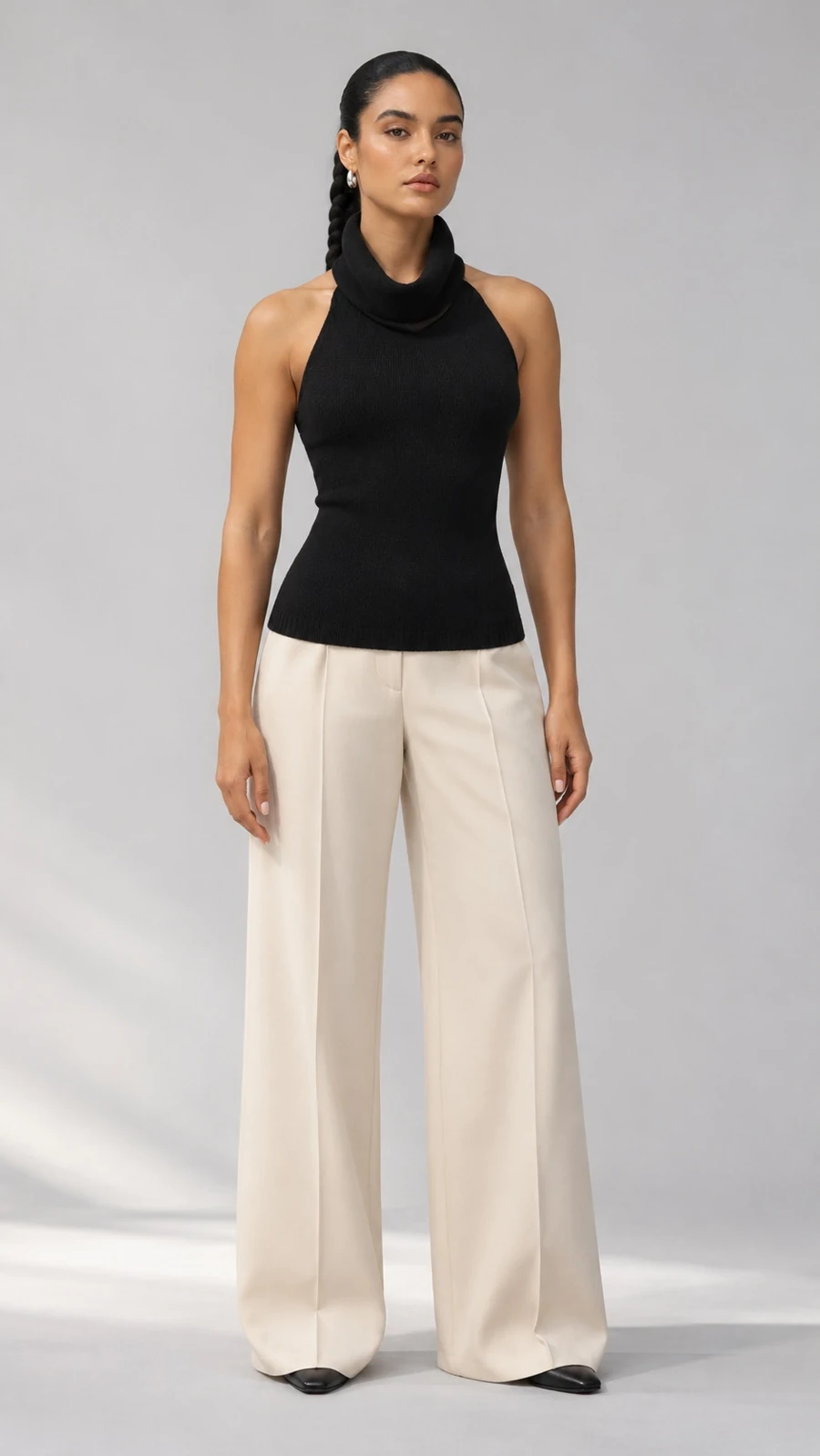
From finished still to fashion clip
01 Start with the swap
Use the finished on-model still as the first frame.
02 Choose the motion
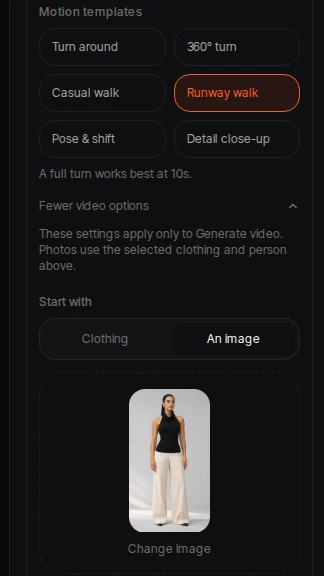
With An image selected, upload the finished still and choose a motion template.
03 Review the clip
Play the result to see how the halter top sits as the model walks.
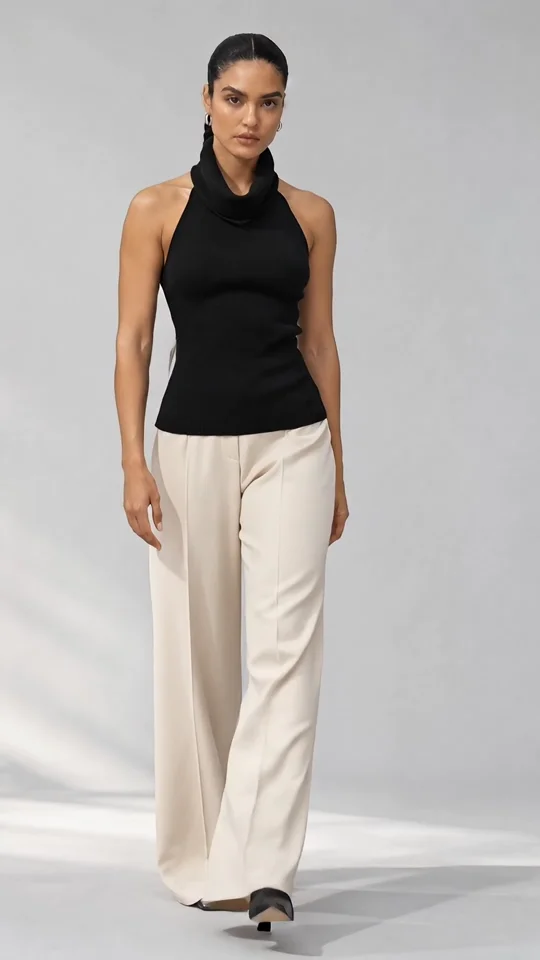
Both Kling 3.0 Pro clips start from the same still, styled with the JLUXLABEL Joya halter top.
How do you make an AI clothes swap video from a photo?
Finish the clothes swap first. In Fashion Studio, set the swapped image as your starting frame and choose a motion template or write your own direction. The studio animates the image you selected.
What it does
- Start with the finished swap
- Upload an approved on-model still or choose Make video on an image in Fashion Studio.
- Choose the motion
- Pick a runway walk, turn or detail close-up, then fine-tune it in Movement.
- Check the clip settings
- Choose an available duration, aspect ratio and resolution. Check the credit estimate before generating.
One still, two kinds of motion
Play the walk and the turn, or open Original photo to compare each clip with the same starting image.
Original photo
The black halter top, walking
Details
A quiet full-body fashion lookbook video in a light gray studio. The model takes two short relaxed steps forward, then stops. The camera smoothly tracks backwards at the same speed to keep exactly the original full-length composition with space over her head and visible floor under both shoes from start to finish. Keep the soft black folded cowl neckline, smooth fitted rib-knit black halter, cream wide-leg trousers and the identity, hair and lighting consistent. One continuous shot, no cuts.
Original photo
A side turn to show the fit
Details
Single continuous studio fashion shot. The model turns slowly about 70 degrees to her left, pauses at a clean side angle so the halter armhole and waist are visible, then turns back toward camera. Keep the black rib-knit top, loose folded cowl neckline, bare shoulders, cream trousers, face and hair consistent. Camera locked, whole outfit in frame, soft daylight, no cuts.
How to make a video from an AI clothes swap
- 01
Start with a finished swap
Download the finished image from AI Clothes Swap. In Fashion Studio, open More video options, set Start with to An image, and upload the image. If the photo is already a Fashion Studio result, choose Make video from its card.
- 02
Pick one motion
Choose Runway walk, Turn around or Detail close-up under Motion templates. For custom direction, edit Movement and describe what moves and what the camera should do.
- 03
Generate and review
Choose an available duration and resolution. Check the estimate, click Generate video, and review the face, garment color, neckline and hem through the whole clip.
Choose the motion for the garment
- Use a steady camera and a slow walk to show how the garment fits in motion.
- Try a small turn for a clear side view without changing the framing.
- Use a close-up and a subtle shift to show pleats or the fabric texture.
What starting image works best?
Use a full-length image with space around the feet and hem for a walk or turn. Use a closer still for a fabric detail. Your starting photo sets the composition for the first frame.
For a clean product clip, use one movement and a steady camera. Compare the finished video with the garment photo, especially around folds, closures and areas that were hidden in the starting frame.
FAQ
Can I animate an image from AI Clothes Swap?
Yes. Download the swapped still, then upload it as the starting image in Fashion Studio and choose the motion.
Where is the Make video button?
Open a finished image in Fashion Studio and choose Make video on the image result. For a downloaded image, use More video options and select An image under Start with.
Which motion works for my garment?
A slow walk shows how a skirt moves. For a fitted top, try a gentle side turn to show the neckline, armholes and waist. For a full 360° turn, use 10 seconds when available.
Will details match the garment throughout the clip?
Check the result against the starting image. Fabric, closures, and unseen areas can vary as the model moves, especially in a large turn.