Real texture, not sharpening
A refinement model trained on skin texture and fine detail rebuilds pores, hair and fabric instead of just adding contrast.
True Touch is a realism pass for images. It rebuilds skin texture, pores, hair and fine surface detail so an AI render — or an over-retouched photo — reads as a real photograph. Set the intensity, optionally upscale up to 3×, and run it in one click.
LOW / REGULAR / HIGH · OPTIONAL 1.5–3× UPSCALE · ONE CLICK
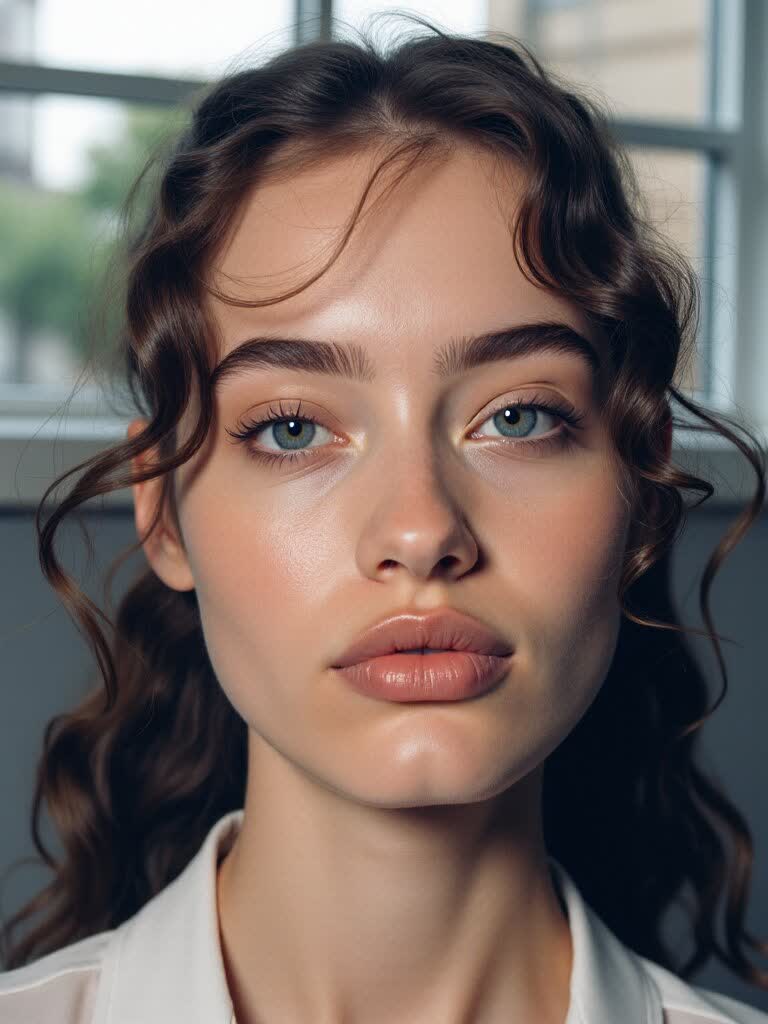
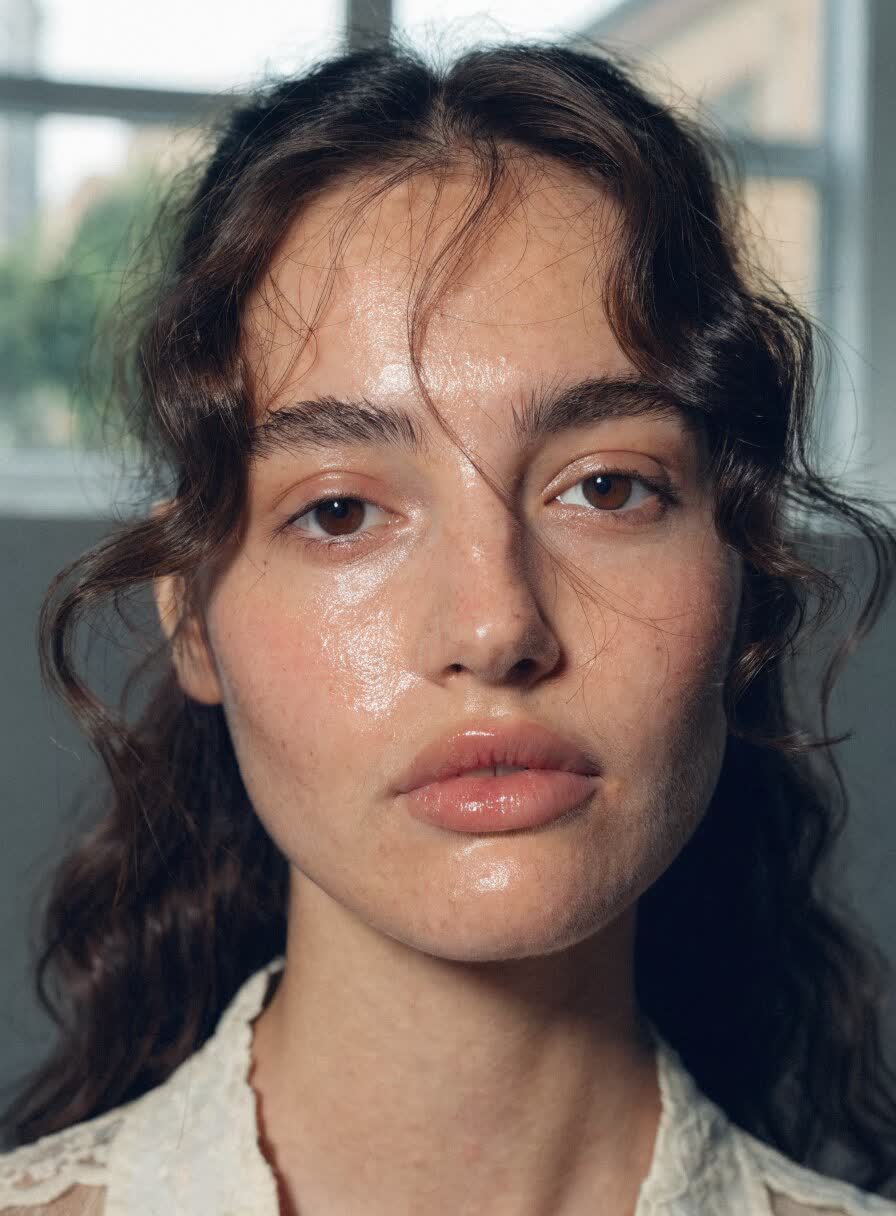
A refinement model trained on skin texture and fine detail rebuilds pores, hair and fabric instead of just adding contrast.
Low for a subtle finish on good renders, Regular for most images, High for heavily smoothed or stylised sources.
Add a 1.5×, 2×, 2.5× or 3× upscale so the enhanced detail lands at delivery size.
The place where AI images fail first is skin. True Touch is tuned for faces, hands and fabric.
Run it on anything you generated, face-swapped or edited without downloading.
It refines texture and micro-detail while keeping the pose, framing and identity of the image.
PNG, JPEG or WebP up to 20 MB, or Send to → True Touch from a result tile in the studio.
Low, Regular or High intensity, and 1× (no upscale) up to 3×.
The estimate shows the cost; click True Touch and the refined image lands in your assets.
Most AI image models render skin too smooth: no pores, no fine hair, no micro-shadows, and a waxy sheen that people notice instantly even when they can't say why. True Touch fixes that in one pass by running the image through a refinement model with dedicated skin-texture and detail components, guided by a tile control so the composition doesn't drift.
You control how far it goes. Low keeps a polished editorial finish, Regular is the everyday setting for portraits and fashion, and High is for images that were heavily smoothed or come from stylised models. An optional upscale of up to 3× means the new detail arrives at the size you actually deliver.
It's the natural finishing step after Generate, Face Swap or Clothes Swap in the Affogato studio — and the difference between an image that says "AI" and one that says "photo".
Turn generated selfies and portraits into believable, post-ready photos.
Give on-model and macro beauty renders real skin, hair and fabric texture.
A final realism pass on generated headshots before they go on LinkedIn or a website.
Blend a swapped face into the shot with matching skin detail.
Bring texture back to real photos that were smoothed too far.
Surface detail: skin texture, pores, fine hair, fabric weave and micro-shadows. Pose, framing, identity and colours stay as they were.
Regular for most images. Low if the render is already close and you want a subtle editorial finish; High for heavily smoothed or stylised sources.
Yes. Choose 1.5× to 3× and the enhanced image is delivered at that size. Leave it at 1× to keep the original resolution.
Yes — it's useful for bringing texture back to over-retouched or heavily compressed photos, not just AI renders.
Per output in credits, with the exact cost shown before you run it. Plans start at $24/month for 2,000 credits with rollover.
Usually last: generate or edit the image, face-swap or clothes-swap if needed, then True Touch, then Upscale for print.
Sign in, send any image to True Touch, and see the difference at 100% zoom.
NO WATERMARKS · CREDITS ROLL OVER · COMMERCIAL LICENSE INCLUDED · CANCEL ANYTIME