Tool · Expand
AI image extender
Expand adds new picture around your photo: more sky, more field, the rest of the room. Choose a new shape or drag the edges, and the model paints the extra area to match the light and perspective of the original. The original pixels stay in the middle, unchanged.
Any photo, any shape
- Upload a photo.
- Pick a ratio (9:16, 16:9, 1:1…) or drag each edge out.
- Expand. The new area is painted to match.
Sign in to run it. The price shows first.


A vertical portrait, made wide
01 Vertical original
Vertical portrait of a woman in a cream sweater in a sunflower field
02 Extended to 16:9
The same portrait extended to 16:9, the sunflower field and sky continuing on both sides
03 What changed
Bria Expand added 839 pixels on the left and on the right. The field, the sky and the light continue; the woman and the middle of the frame are the original pixels.
Unedited output.
Bria Expand, one run, no prompt, unedited. The person is AI-generated.
How do you extend an image with AI?
Open Expand in Image Studio, upload the photo and choose the shape you want, or drag each edge out by hand (up to 2,048 pixels per side). Click Expand. The model paints the new area from the edges of your photo inward, so the horizon, the floor and the light line up.
Bria Expand and Ideogram Reframe also take a short prompt for what should appear in the new space; FLUX.2 [pro] Outpaint works from the picture alone.
What it does
- Any ratio
- Turn a portrait into a banner, a square into a story, a landscape into a poster.
- Your photo stays
- The original sits in the new canvas untouched; only the added area is generated.
- Matches the scene
- Light, horizon and perspective carry on from the edges of the photo.
- Prompt the new space
- Bria and Ideogram take a short description of what should appear around it.
Wider, taller, square
One run each, from three different photos. The original sits in the middle of every result.
 Square original
 Extended to 9:16
A square action shot, made into a 9:16 story
 9:16 original
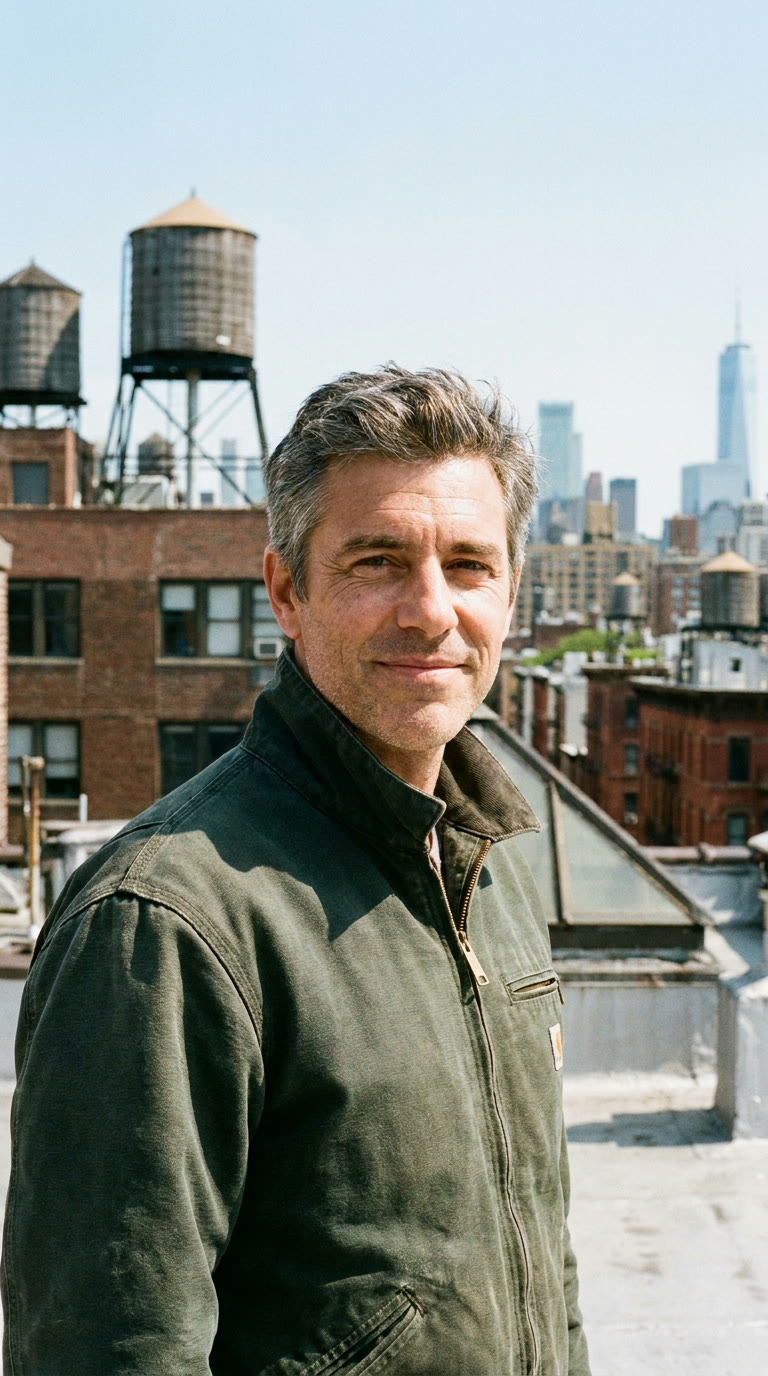
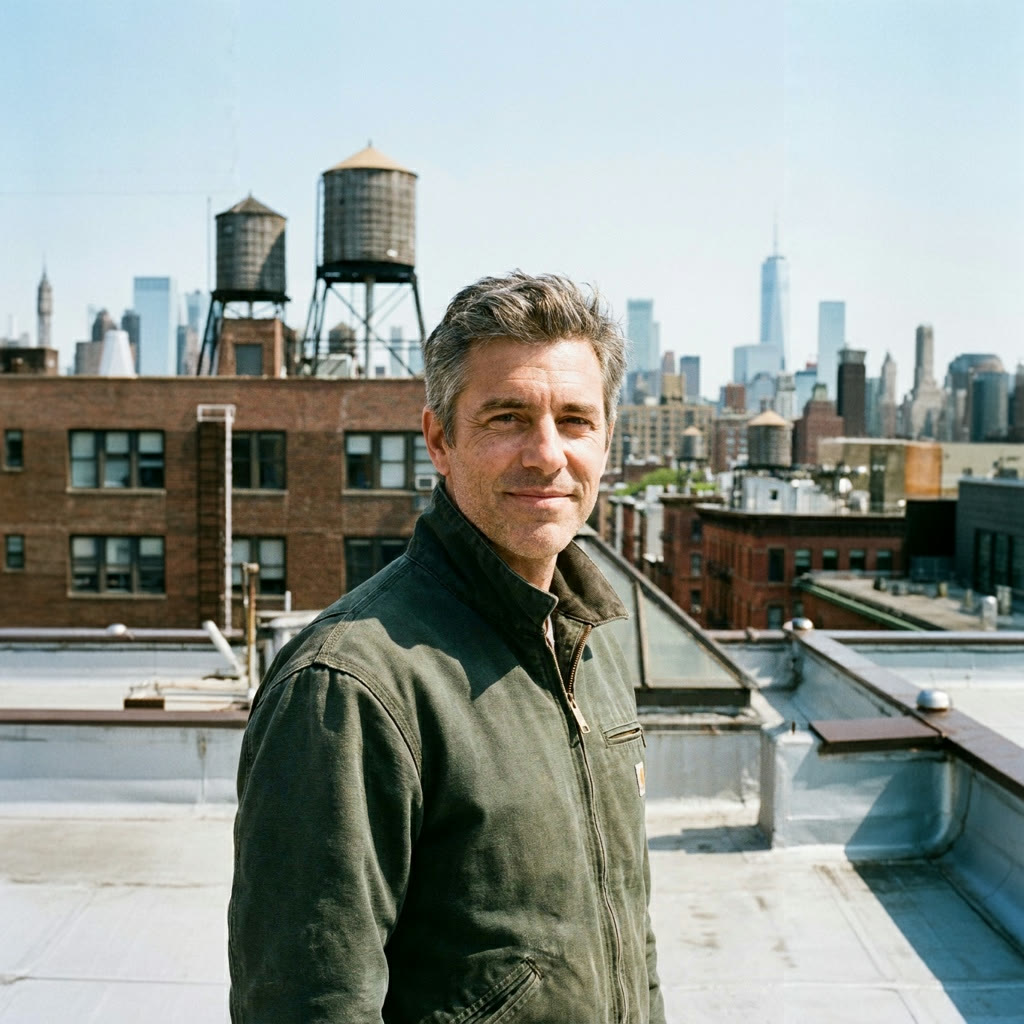 Reframed 1:1
A vertical portrait, reframed square
How to extend an image with AI
- 01
Upload the photo
Open Image Studio, pick Retouch, then Expand, and upload a JPG, PNG or WebP, or send a result from its tile.
Photo has a border or text at the edge? Crop it off first.
- 02
Set the new canvas
Pick a target ratio and where the original sits, or drag each edge out. Add a short prompt if you want something specific in the new space.
Big change in shape? Expand in two steps for a cleaner result.
- 03
Expand and check the seams
Click Expand. Look along the joins at full size, then download or keep editing.
A seam shows? Run again, or erase the spot and expand once more.
The three extenders
All three keep your photo and add around it; they differ in how they decide what to paint.
| Model | Best at | Credits |
|---|---|---|
| Bria Expand | Photos: keeps the original pixels intact | 8 per image |
| FLUX.2 [pro] Outpaint | Seamless context, no prompt needed | 9 per image |
| Ideogram 3 Reframe | Re-composing onto a new, centred canvas | 12 per image |
Where it's used
Tips
- Leave the subject a little room from the edge you extend.
- Big ratio changes look best done in two smaller steps.
- Describe the new area only if you want something specific there.
- Upscale after expanding, not before.
What is an AI image extender?
An image extender, also called outpainting or uncropping, generates picture outside the edges of a photo. It reads the borders of the image and continues them: the rest of the field, the rest of the sky, the other half of the room.
It is the fastest way to reuse one photo across placements. A vertical portrait can become a 16:9 YouTube banner, a square post can become a 9:16 story, and a tight crop can get back the space a client asked for, without a reshoot.
FAQ
Does it change my original photo?
No. The original sits in the new canvas as it was; only the area you add is generated. Bria Expand is built to keep the original pixels intact.
How far can I extend?
Up to 2,048 pixels on each side in one run. For more, expand again from the result.
Can I uncrop a photo that cut someone off?
Yes. In the skateboard example the head was cut off at the top of the square; FLUX.2 Outpaint drew the rest of him into a 9:16 frame. Check faces and hands carefully, since they are generated.
How much does it cost?
Bria Expand is 8 credits per image. FLUX.2 [pro] Outpaint is 9 credits per image. The Standard plan is $24 a month for 2,000 credits. The price shows before you expand.


