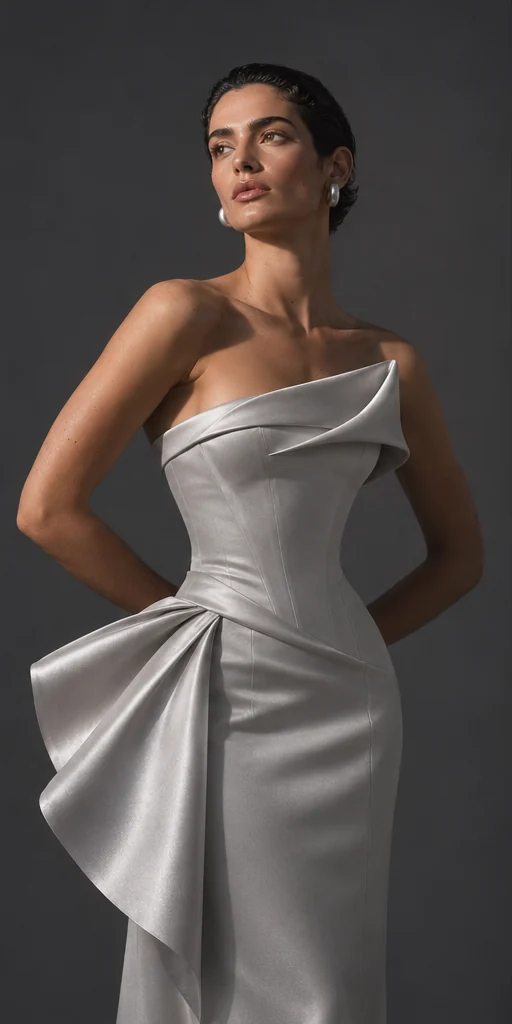
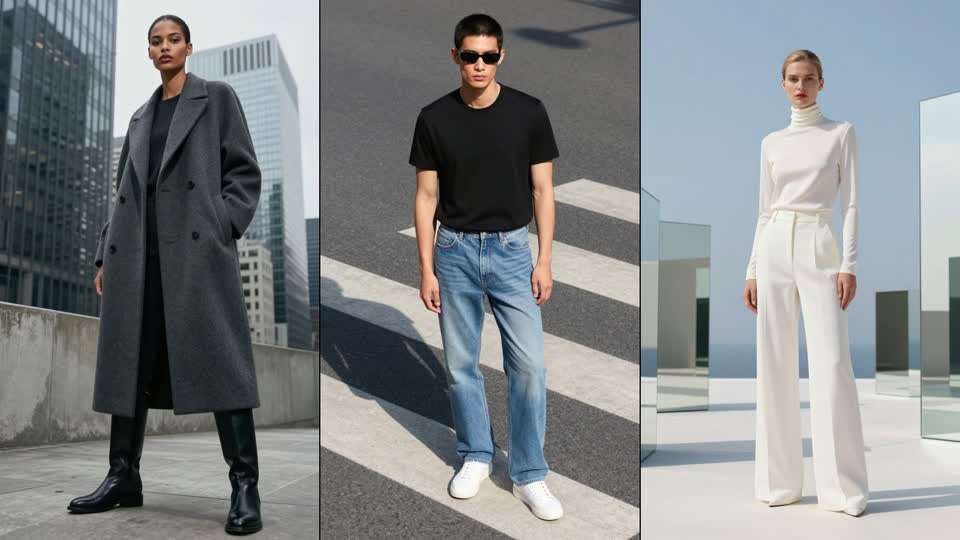
Fashion Studio · Batch photography
AI clothes swap batch processing
Turn one flat-lay dress photo into a coordinated collection of on-model images. Use Fashion Studio to generate up to four variations per item, then direct the exact angles and close-ups you need.
One flat lay. A full shot list.
- Upload one clear dress photo.
- Keep the same saved model across the shoot.
- Generate up to four variations per item in one run.
Review the credit estimate before generating.
From product photo to lookbook
01 Start with the dress
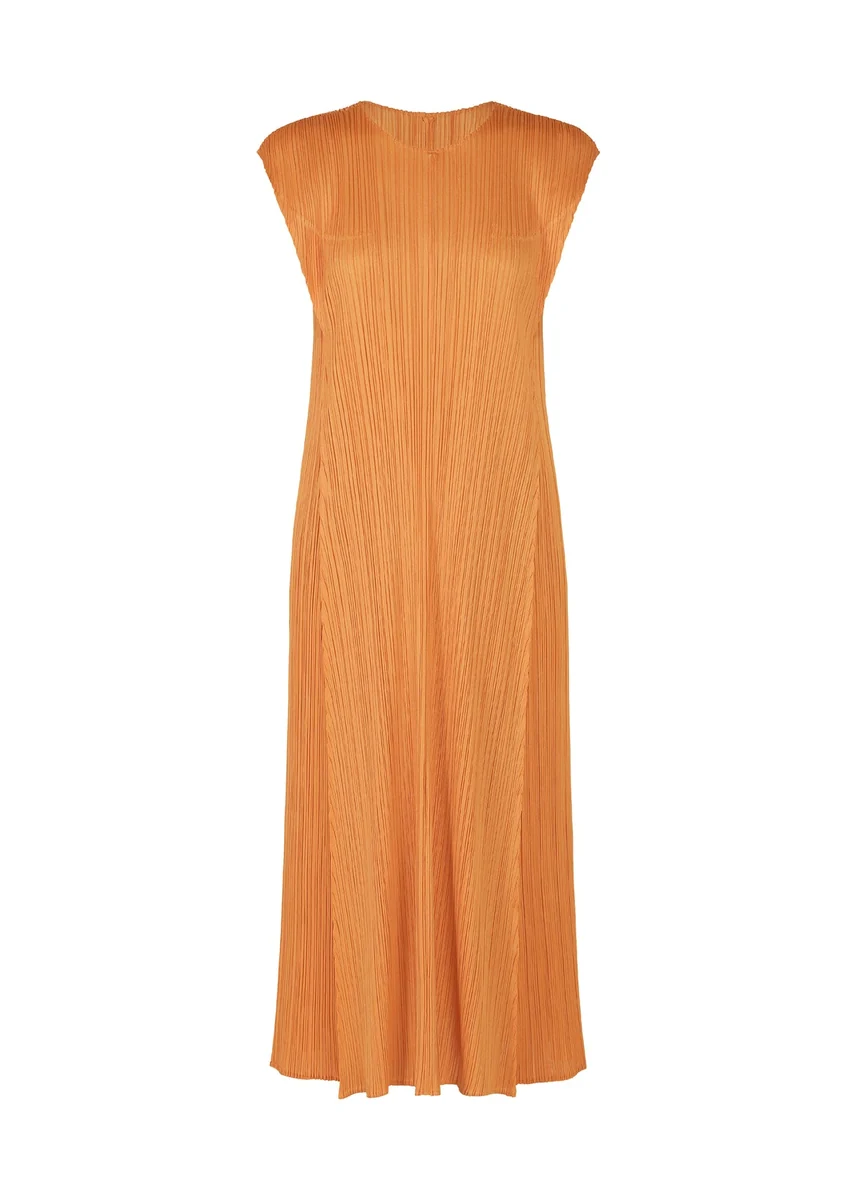
The original orange BOUQUET product photo from Pleats Please Issey Miyake.
02 Set the batch size
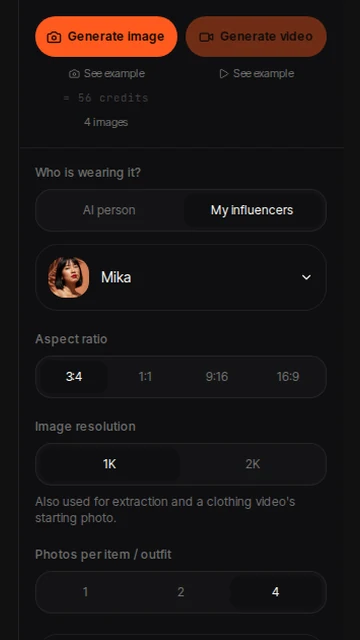
With one dress and one saved model selected, set Photos per item / outfit to 4.
03 Build the collection
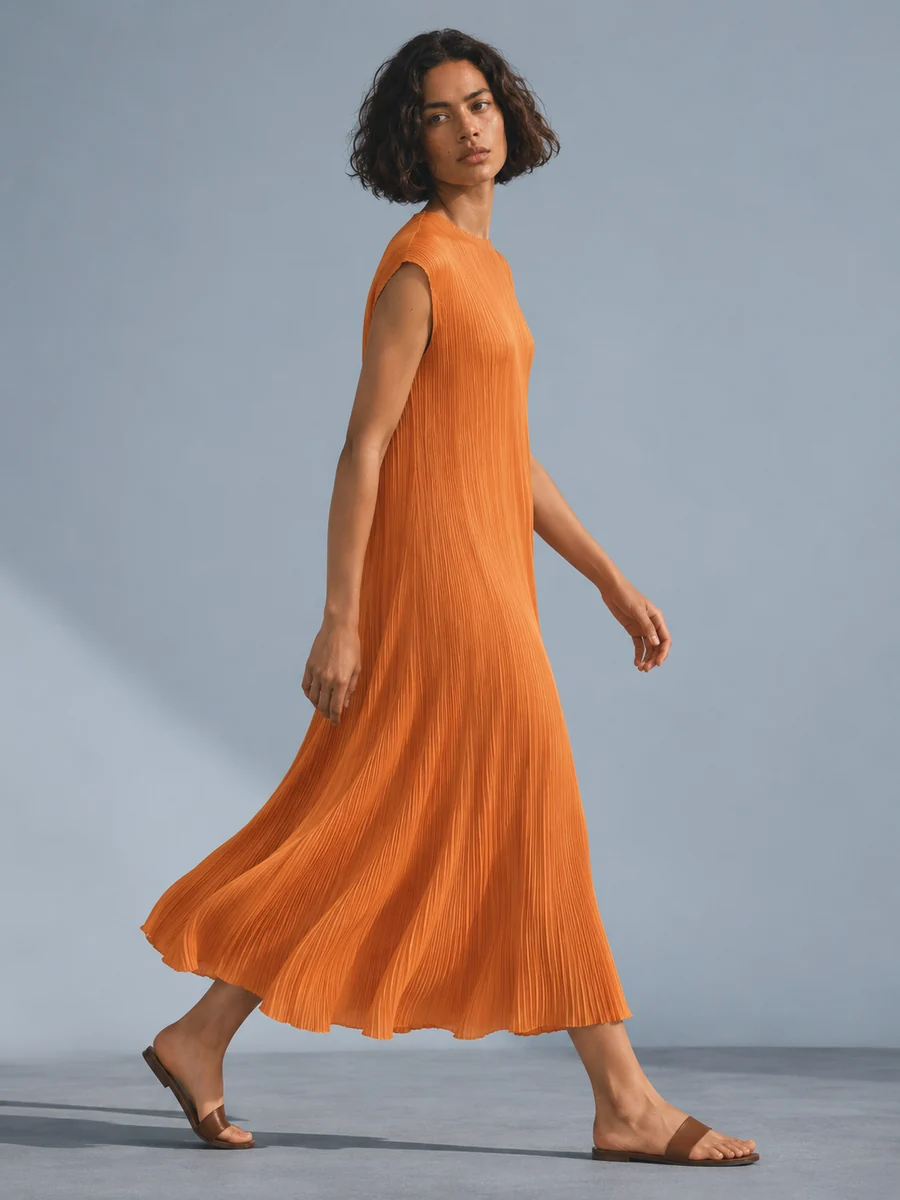
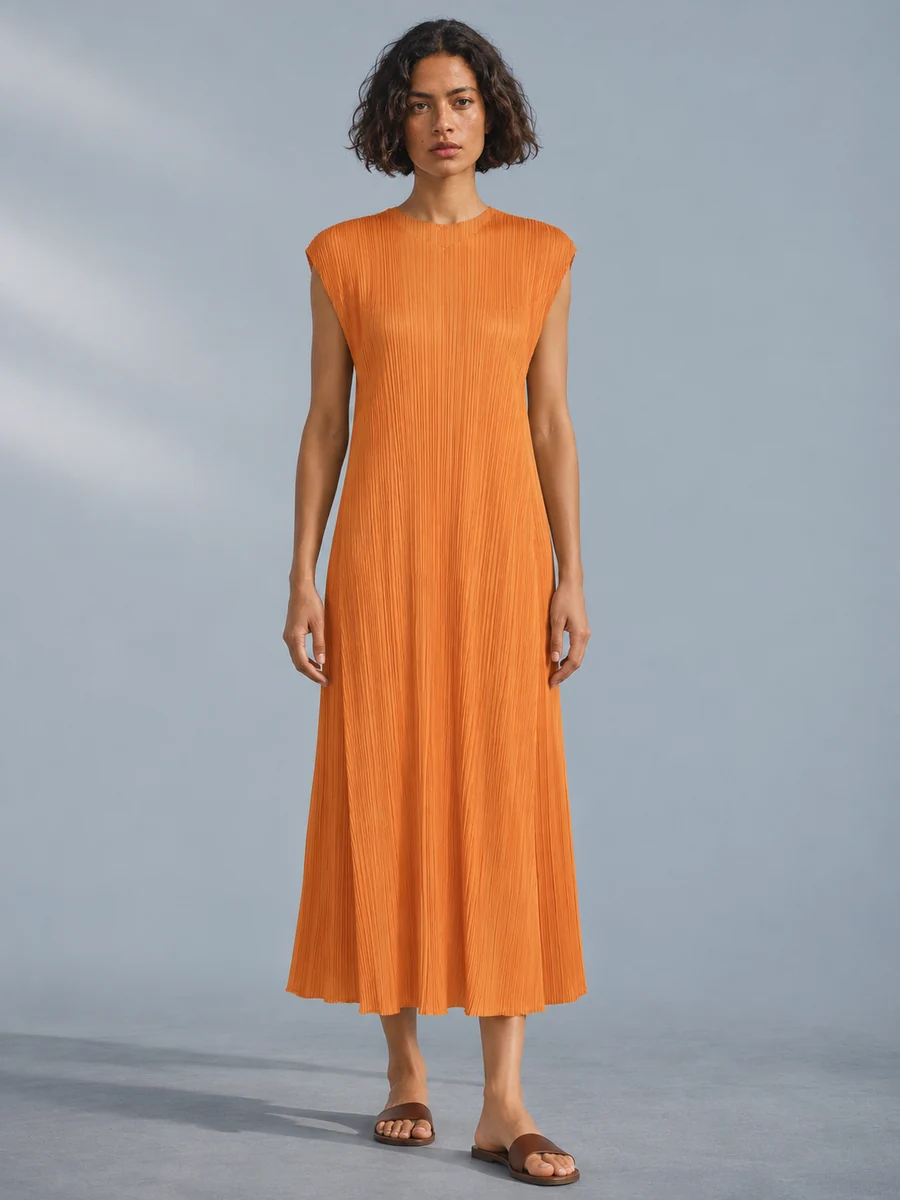
A walking frame shows how the pleated skirt drapes in motion.
The product photo is from the brand. The on-model pictures are AI-generated illustrations of the shot list.
How does AI clothes swap batch processing work?
Fashion Studio takes one dress photo, one model and one set of instructions and generates up to four variations per item. Choose a saved model for consistency as you build the collection.
Start with a batch, then keep the same source photo and model while changing the direction for any specific angle or crop still missing from the set.
Full-length front view on a pale blue-gray studio backdrop. Soft light from camera left. Keep the orange vertical pleats and round neckline visible, with the full hem and shoes in frame.
What it does
- One garment reference
- Reuse the same clear photo of the entire dress across the collection.
- One saved model
- Pick a saved character through My influencers and keep them selected for each shot.
- Up to four variations per item
- Choose 1, 2 or 4 photos per item or outfit. Each image in the batch uses the same settings and prompt.
- Direction for specific shots
- Use Advanced prompting to specify the view, pose, framing and light for a separate run.
Four images from one dress photo
Two product-page views, a movement frame and a fabric close-up. These AI illustrations use the same orange dress reference.
Full-length front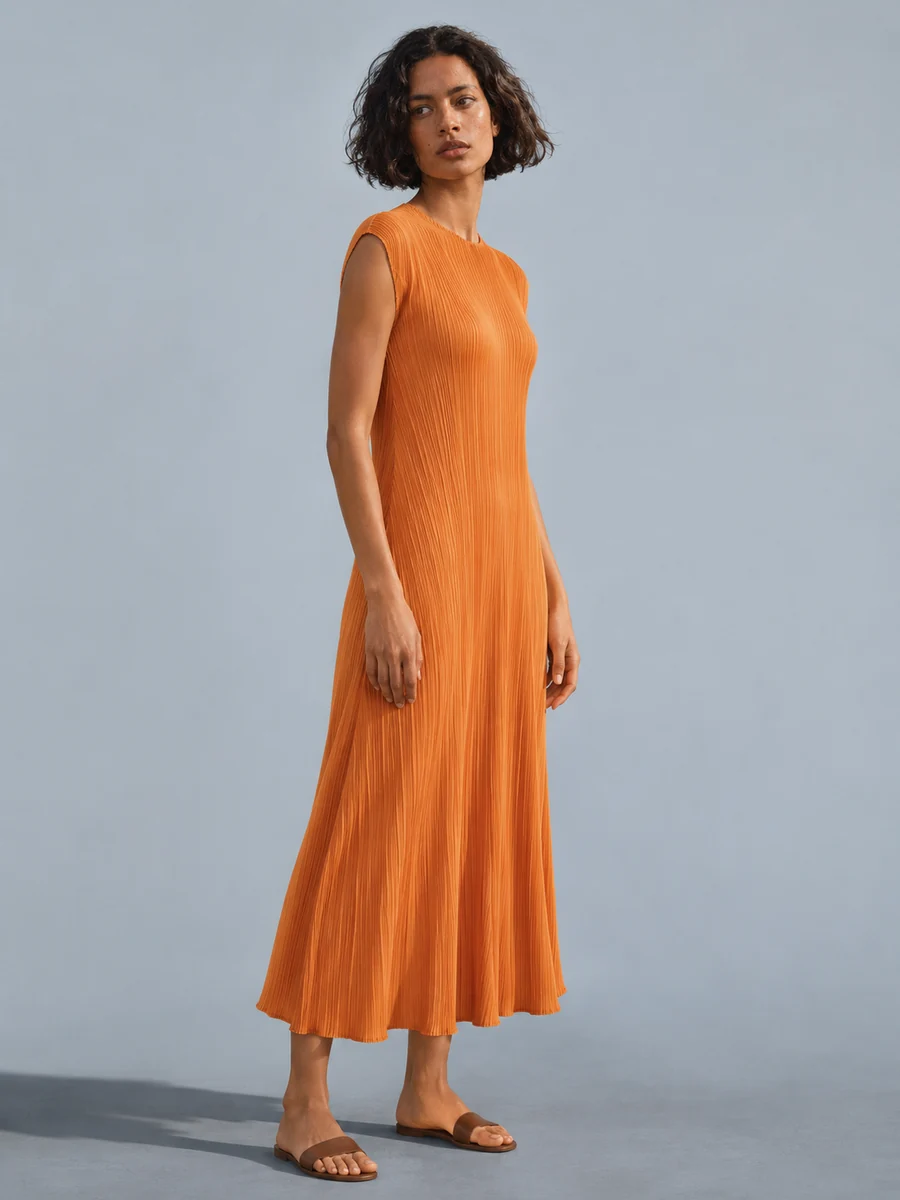 Three-quarter view
Product-page views
Mid-step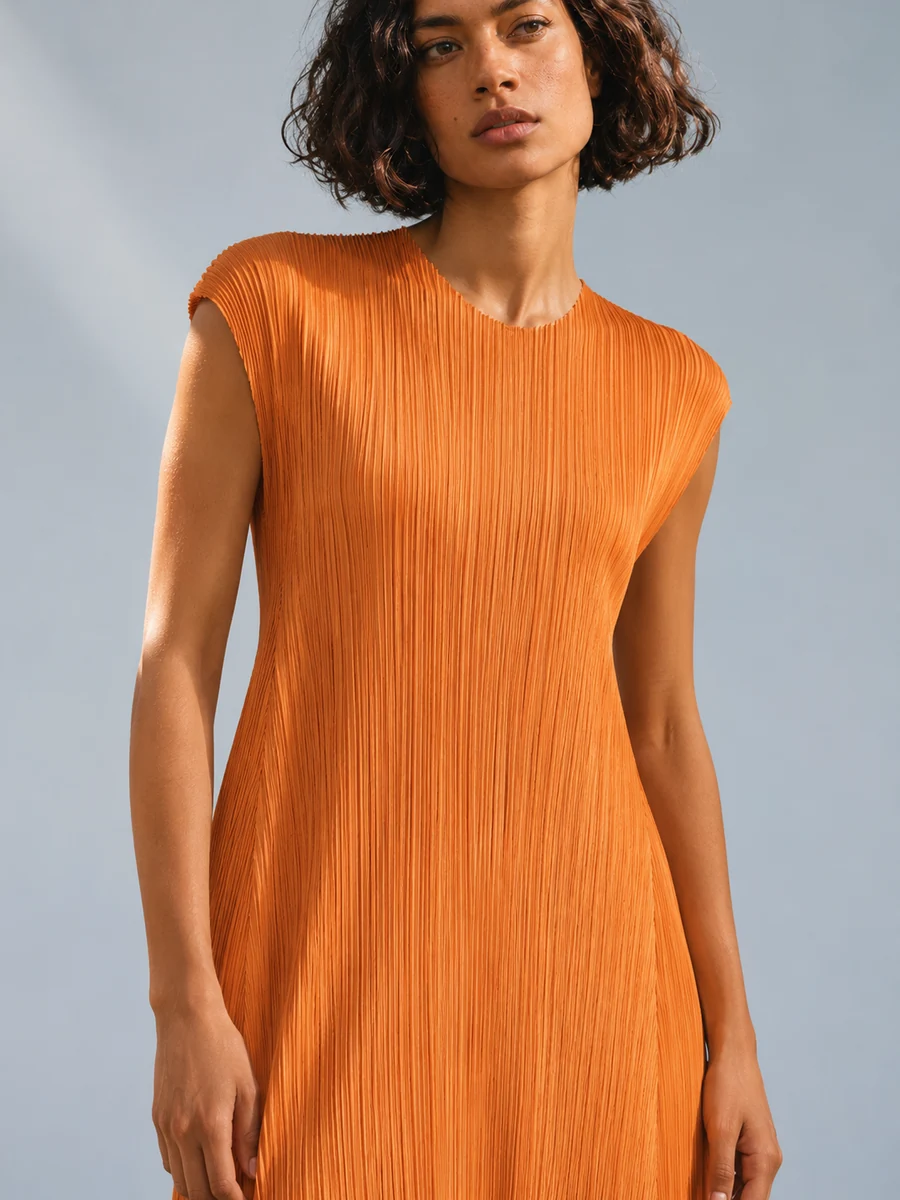 Pleat detail
Movement and fabric
How to batch-generate fashion images from a dress flat lay
- 01
Upload one clean flat lay
Open Fashion Studio, choose Upload clothing and select one photo of the dress. Check that the whole neckline, silhouette and hem are visible.
- 02
Choose your model and batch size
Under Who is wearing it?, select My influencers and pick a saved character. Choose 4 under Photos per item / outfit, set your aspect ratio and click Generate image.
- 03
Direct the remaining shots
Review the first four variations. For a specific angle, walking shot or close-up, keep the dress and model selected, set the count to 1, and change the shot direction in Advanced prompting.
Check the set before you publish
- Match the color, neckline and hem to the original photograph.
- Check that the same face and lighting carry through the set.
- Use another real reference photo if the garment has details the first photo does not show.
How do you build a collection from one dress photo?
Start with a brief for the model, light, background and outfit. Keep those settings and the original dress photo in place across runs. Change the shot direction when you need a different view.
Use the full-length front image on the product page, the three-quarter view to show the silhouette, the walking shot for a lookbook and the detail crop to show the fabric. Compare the color, neckline and hem against the source before choosing what to publish.
FAQ
Can I use just one dress photo?
Yes. Start with one well-lit image that shows the entire dress. Reuse that image across your on-model variations.
How many images can I generate in one batch?
Choose 1, 2 or 4 photos per selected item or outfit. Every variation within a batch uses the same prompt and settings.
Can I request a different pose for each image in one batch?
The batch shares one prompt. To direct an exact pose, angle or crop for one image, submit a separate run with that direction in Advanced prompting.
How do I keep the same face across the collection?
Select the same saved character under My influencers for each run. Review the likeness and garment details when you pick the final images.
What if I already have a model photo for each pose?
Use AI Clothes Swap to apply the garment to each of those photos while keeping the original pose and framing.